 Koedori
Step by step
-
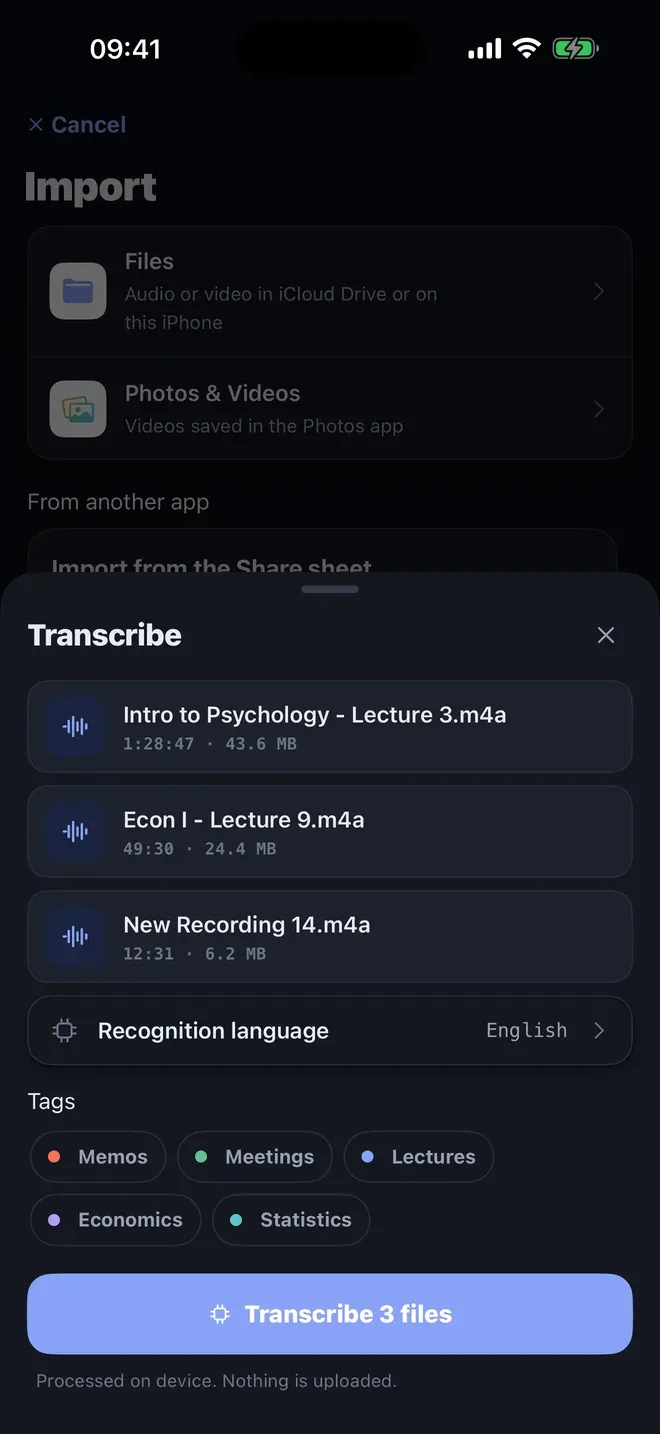
Record the interview, or bring in the recording. In person, tap the round record button, choose the recognition language and a tag such as Interviews, tap Start recording, and set your iPhone between you and the person you are talking to. Recorded it already? Share it to Koedori from Voice Memos or another app, or tap Import and pick it from Files or Photos & Videos. Choose the language and tags, then tap Transcribe.
-
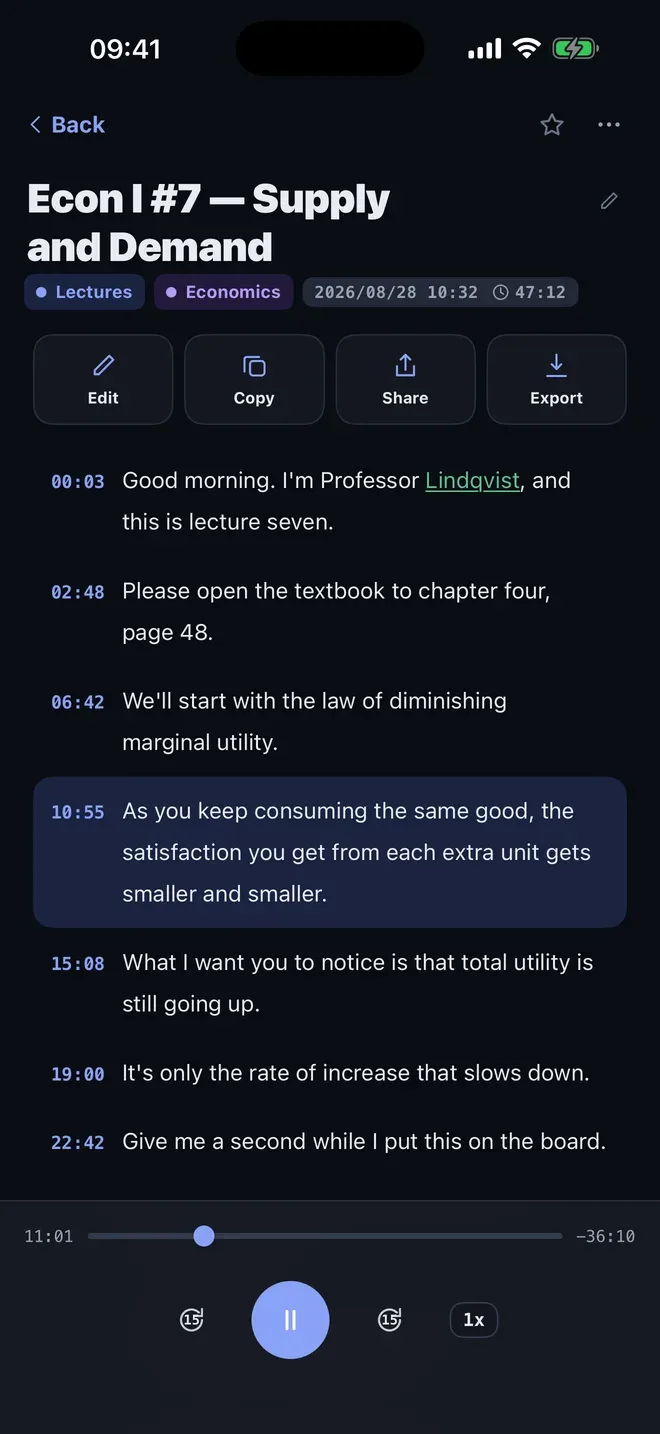
Check every quote against the audio. Each line of the transcript keeps its time. Tap a line and the recording plays from that moment, so you can hear a quote again before you use it. Skip back or forward 15 seconds, change the playback speed, and retype any line in Edit.
-
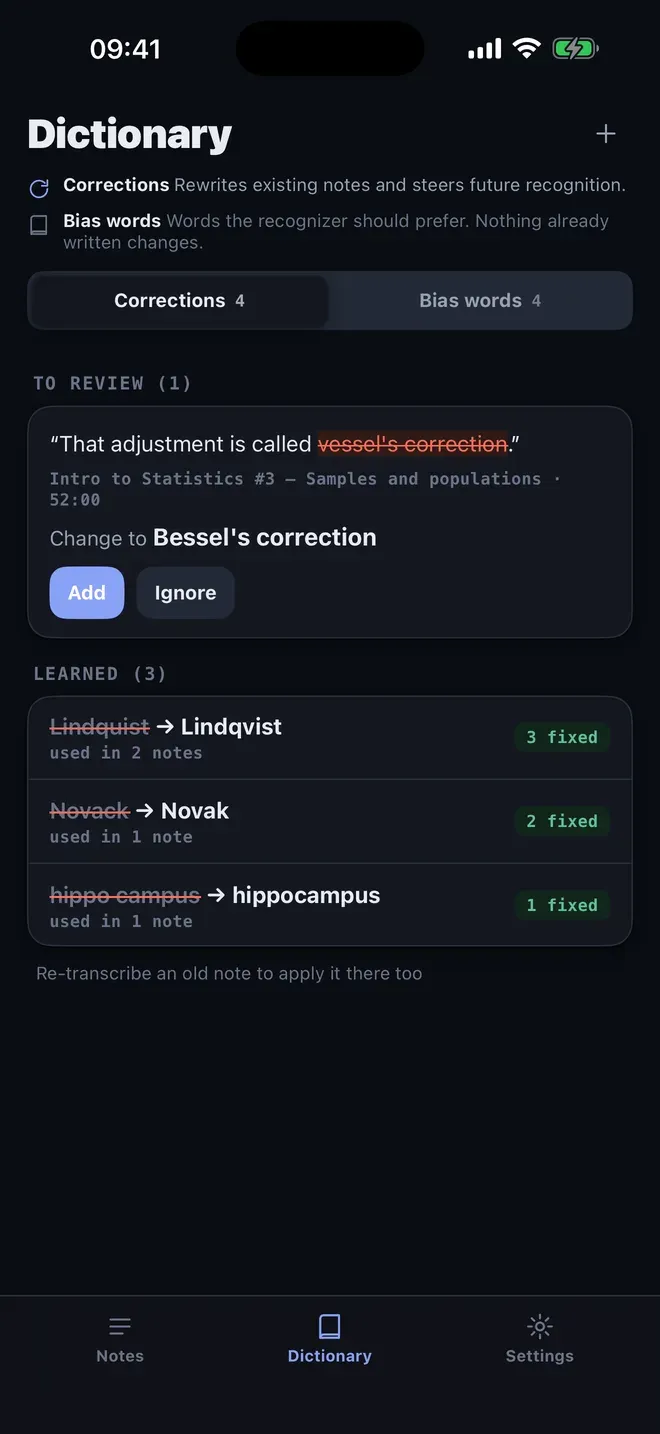
Teach it the names once. Names of people, companies and places are easy for speech recognition to get wrong. Add a correction in the Dictionary, what it heard and what it should be, and Koedori fixes it in this transcript, rewrites your earlier notes, and fixes your next interviews the same way.
-
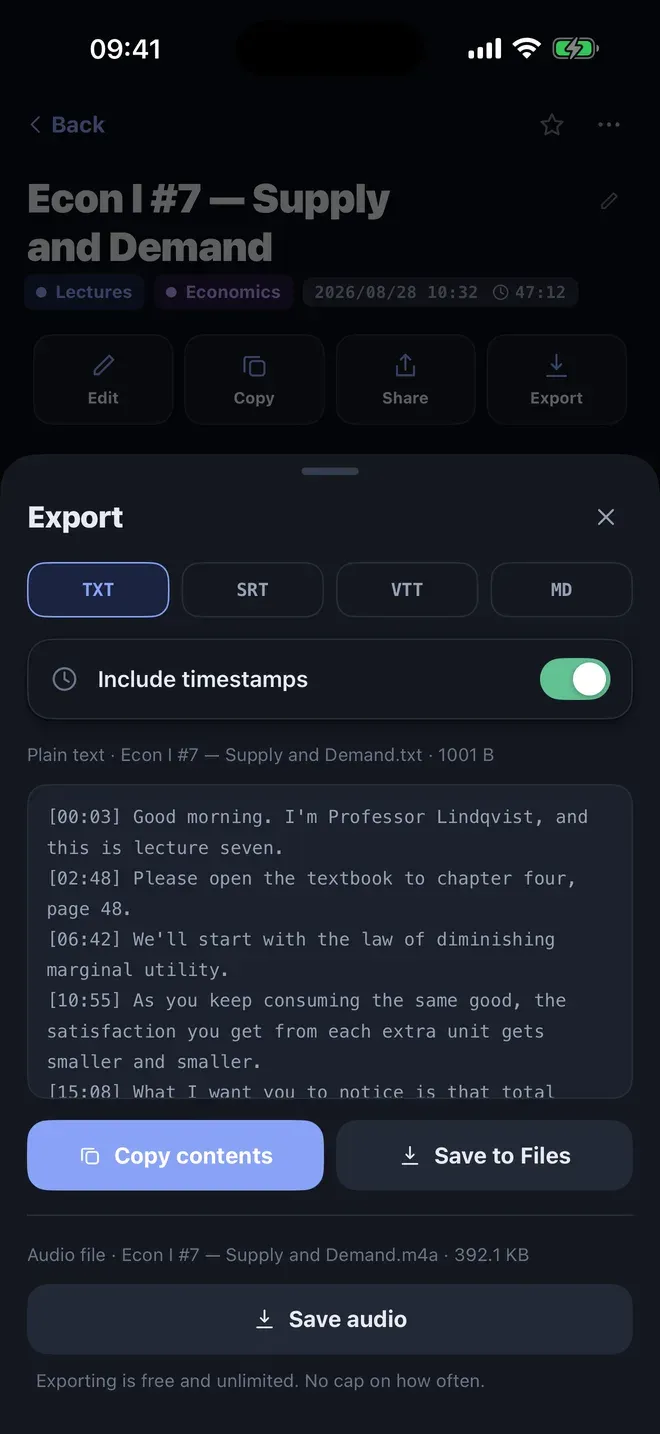
Export the transcript. Tap Export, choose TXT or MD, and switch Include timestamps on to show where each quote sits in the recording. Then Copy contents or Save to Files. Save audio keeps the recording itself next to it.
How to transcribe an interview properly
- Ask first. Tell the person you are recording and what the transcript is for. A research project may need their consent in writing.
- Record close and quiet. Put the iPhone between the two of you, on the table, away from cups and keyboards.
- Decide: word for word, or clean. Research and direct quotes need what was said, word for word. An article or a report can drop repeats and false starts. Either way, keep the timestamped transcript as the original.
- Mark who is speaking. Koedori writes each sentence on its own line with its time, without speaker names. Add them in Edit as you check, for example “Q:” and “A:”.
- Quote only what you have heard. Tap the line and listen before a quote goes into your work.
- Keep or delete the audio. If your project asks you to delete recordings once they are transcribed, use Delete audio, keep transcript in the note’s menu.
Other ways to do it
- Typing it out by hand is free and exact, and it takes several times as long as the interview itself.
- The Voice Memos app can show a transcript of its own recordings on iPhone 12 or later. Koedori also takes recordings from Files, Photos and other apps, fixes names with its Dictionary, and exports text, Markdown and subtitles.
- Online transcription services often add speaker names, and they upload the interview to their servers first, which matters for confidential research.
Questions people ask
Can I transcribe an interview in another language?
Yes. Koedori transcribes about ten languages on your iPhone, including English, Spanish, French, German, Japanese, Chinese and Korean. Pick the recognition language before you transcribe, and if you picked the wrong one, re-transcribe the note in the right language as often as you need.
Can I transcribe a recorded video call?
Yes, once you have the recording as a file. Save the audio or video to the Files app, or the video to Photos, and import it into Koedori: it is transcribed on your iPhone like an interview you recorded yourself.
Is the transcript ready the moment the interview ends?
Koedori starts transcribing the moment you stop recording, on the iPhone itself. Set Transcribe to “While recording” on the New recording screen, and you can read the words as they are spoken.

Get Koedori
Record lectures, transcribe them offline

On the App Store as “Lecture Recorder: Transcribe”.