CopyStack: Copy on one device, paste on another
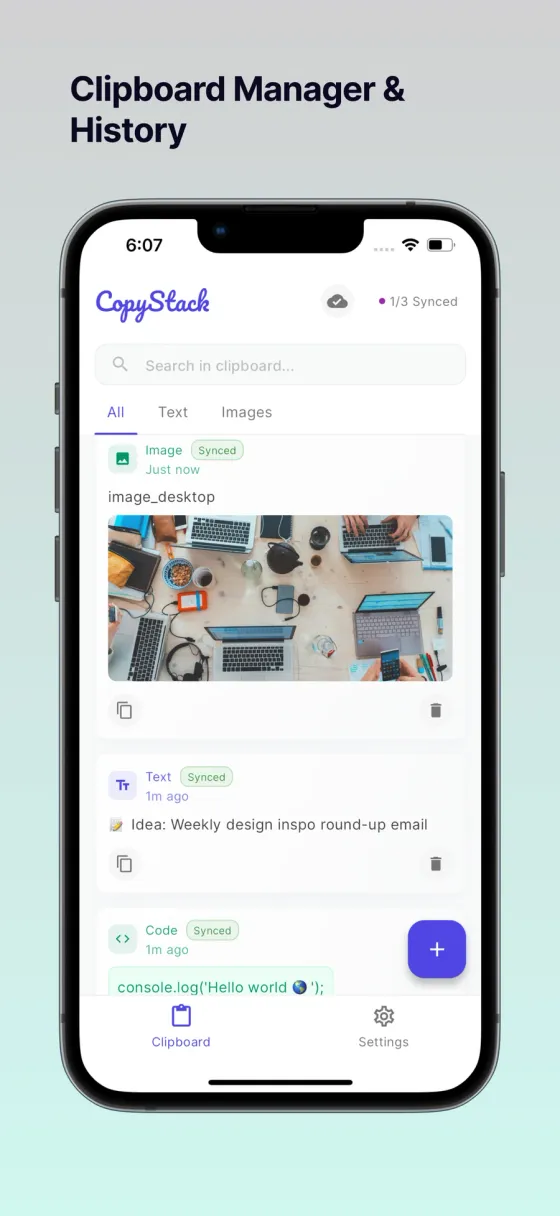
CopyStack is a clipboard manager for iOS, Android and the web. Paste text, links and images into it, and it keeps them in a list: tap Copy on any clip to use it again. Sign in, and the list syncs between your phone, tablet and browser, so you can copy on one device and paste on another. Without an account, your clips stay on your device, and you can share them with another device on the same Wi-Fi.


On the App Store as “CopyStack: Clipboard Manager”. On Google Play as “CopyStack: Clipboard Manager”.
Platforms and price
- Price
- Free to download.
- Platforms
- iOS, Android, Web
- Requires
- iOS 15.0 or later
- Category
- Productivity
Screenshots
Features
Keeps a list of your clips (text, links and images); tap Copy to use one again
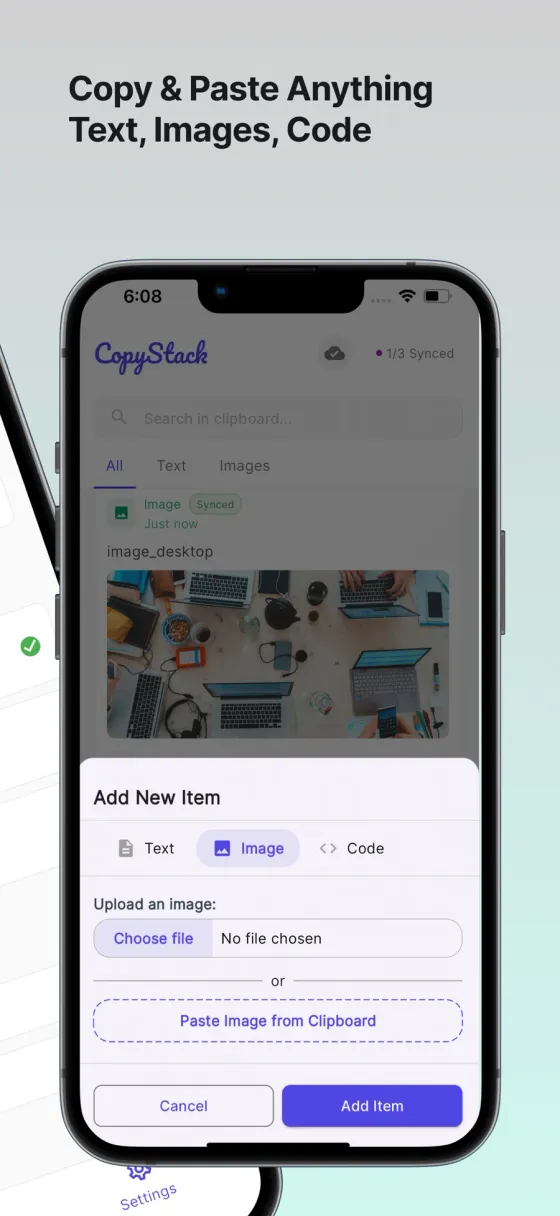
Add a clip by pasting from the clipboard, typing, or picking a photo or file
Pin the clips you use most
Syncs your phone, tablet and the web app: copy on one device, paste on another
Send files between your devices
Shares over your Wi-Fi without an account; sign in to sync anywhere
Questions people ask
How can I see my clipboard history on iPhone?
CopyStack gives your iPhone a clipboard history you control: each time you paste text, a link or an image into CopyStack, it's saved as a clip in a list you can scroll back through. Tap Copy on any clip to put it back on your clipboard, and pin the ones you use most. It works the same way on Android.
How do I copy text on my phone and paste it on my computer?
To copy from phone to computer, use CopyStack on your phone and the CopyStack web app (app.copystack.w-lab.app) in your computer's browser, signed in to the same account. Paste text or a link into CopyStack on the phone, and within seconds it's in the list on the computer, ready to copy; it works from computer to phone too. Because the computer side runs in a browser, it works on a Windows PC as well as a Mac.
How do I sync my clipboard between Android, iPhone and a PC?
CopyStack keeps one list of clips in sync across Android phones, iPhones, tablets and its web app in a browser. Sign in with the same account on each, and a clip you add on one device shows up on the others, ready to copy and paste. It's free to download on Google Play and the App Store.
Can I copy several things on iPhone and paste them later?
Yes, with CopyStack: paste each thing into CopyStack as you copy it, and it keeps each one as a separate clip, so you can copy them back one at a time wherever you need them. A clip can be text, a link or an image, and you can also type a note or add a photo or file.
Do I need an account to use CopyStack?
No. Without an account, CopyStack keeps your clips on your device, and you can share them with another device on the same Wi-Fi network. Sign in to sync the same clips across your phone, tablet and the web app, and to send files between your devices wherever they are.

Get CopyStack
Copy on one device, paste on another
Free to download.
On the App Store as “CopyStack: Clipboard Manager”. On Google Play as “CopyStack: Clipboard Manager”.
Support and policies
More apps from W Lab
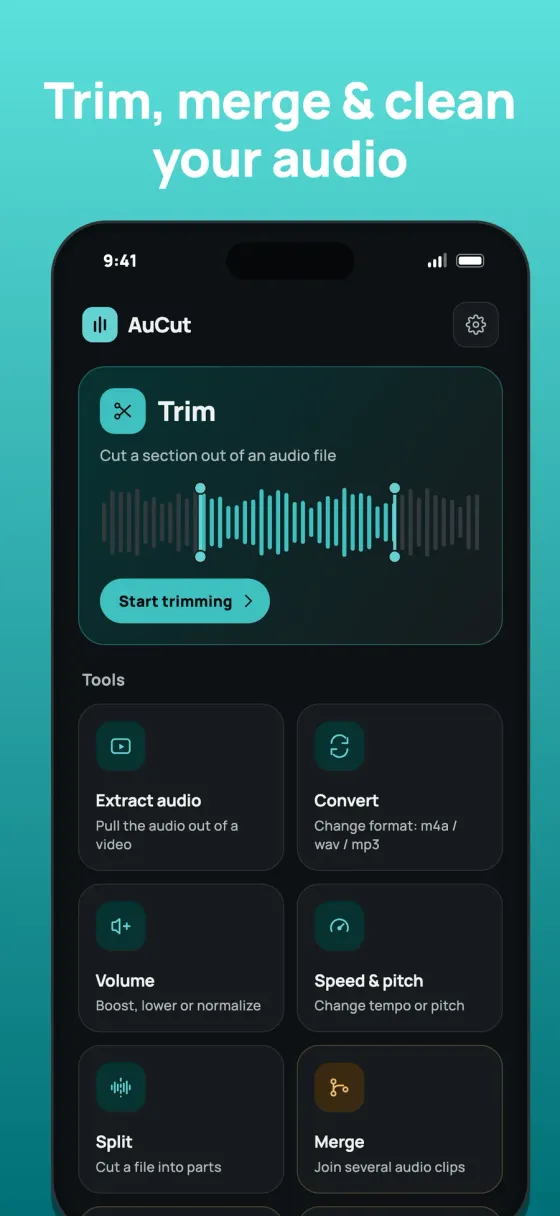

AuCut
Cut audio and extract it from video iOS Android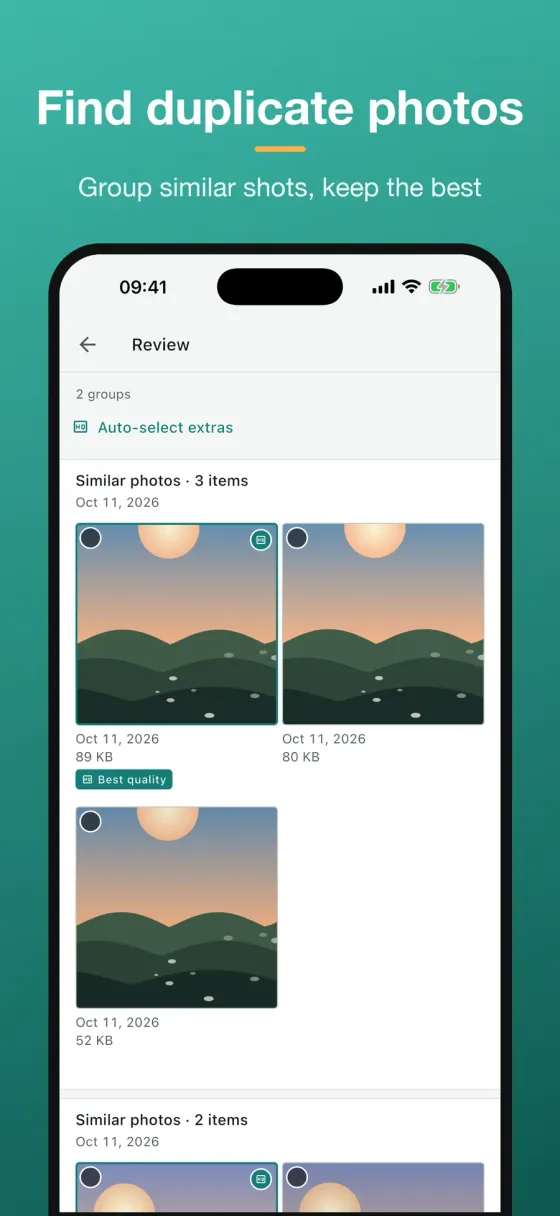

MRecov
Clean up duplicate and blurry photos iOS Android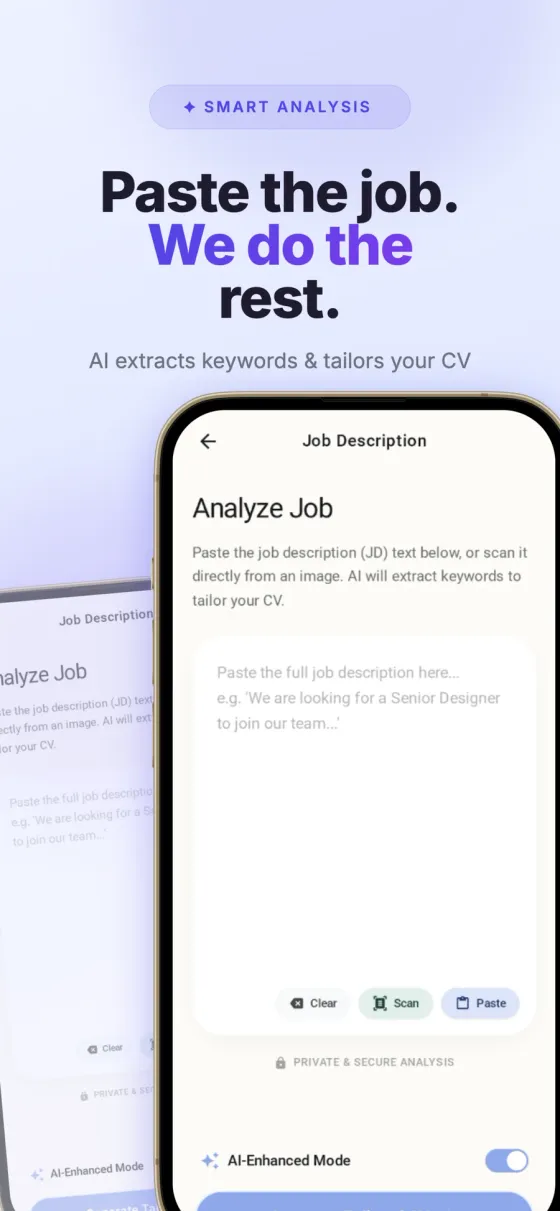

ResumeX
Tailor your resume to each job with AI iOS Android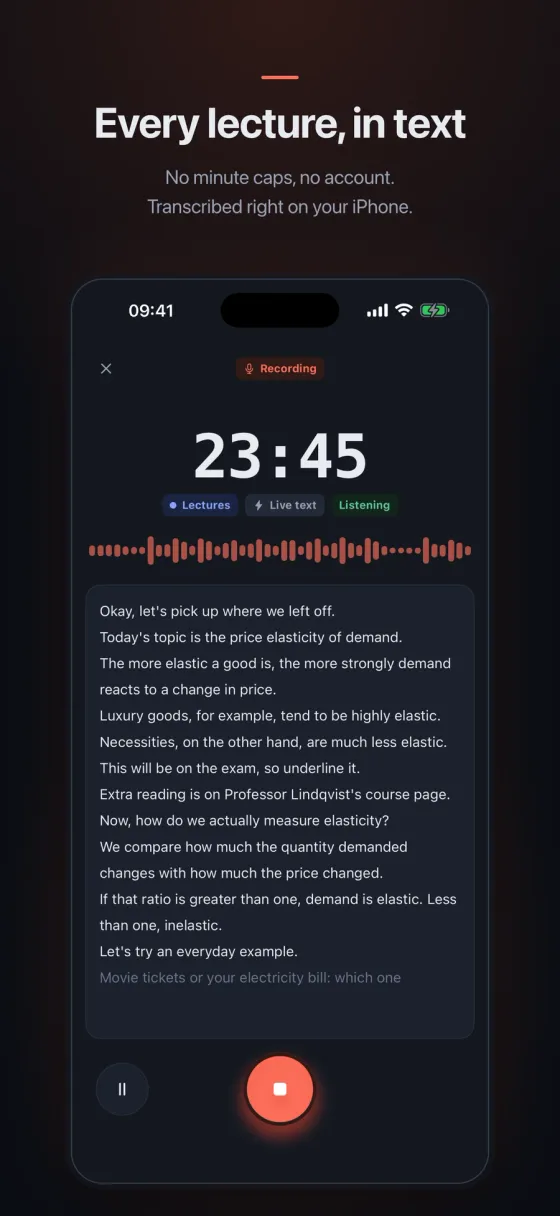

Koedori
Record lectures, transcribe them offline iOS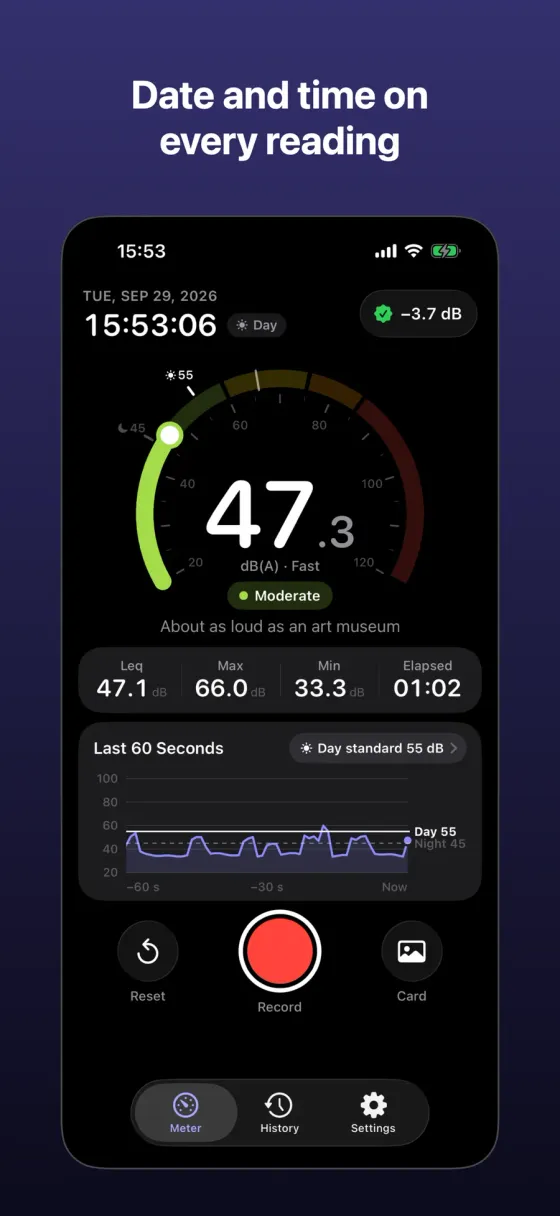

Noise Meter
Decibel meter with date and time iOS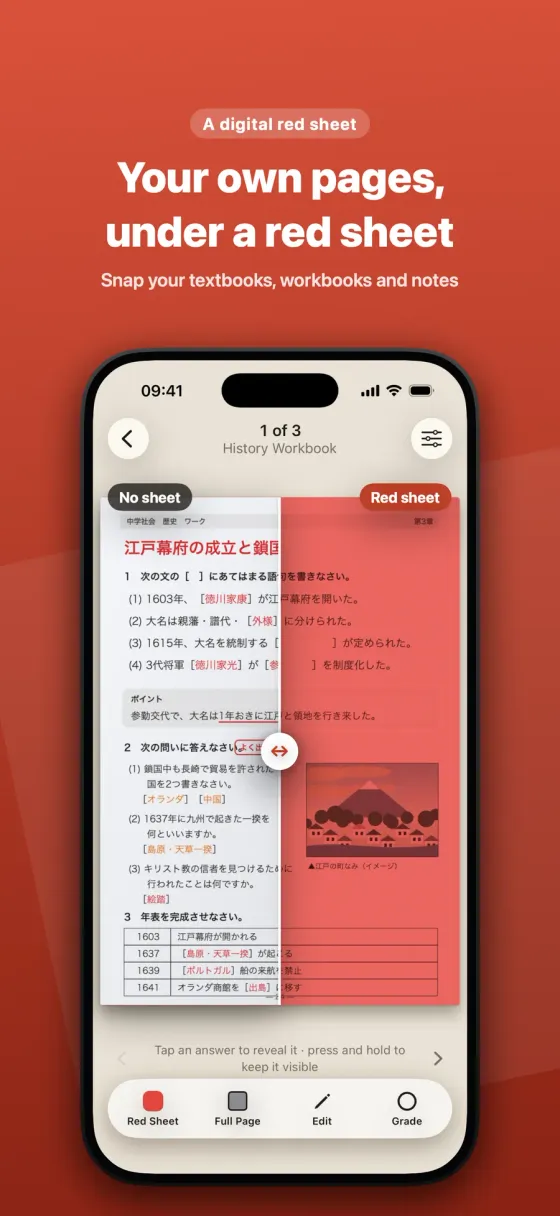

Red Sheet
Turn your notes into a quiz, no typing iOS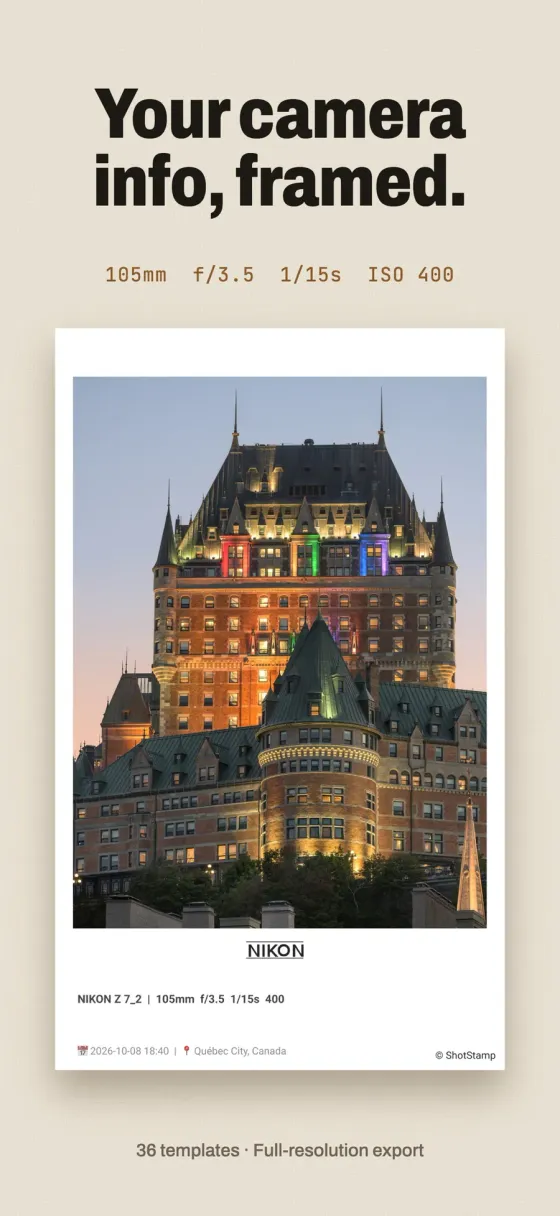

ShotStamp
EXIF watermarks and camera info frames iOS Android W Lab × Ketch Studio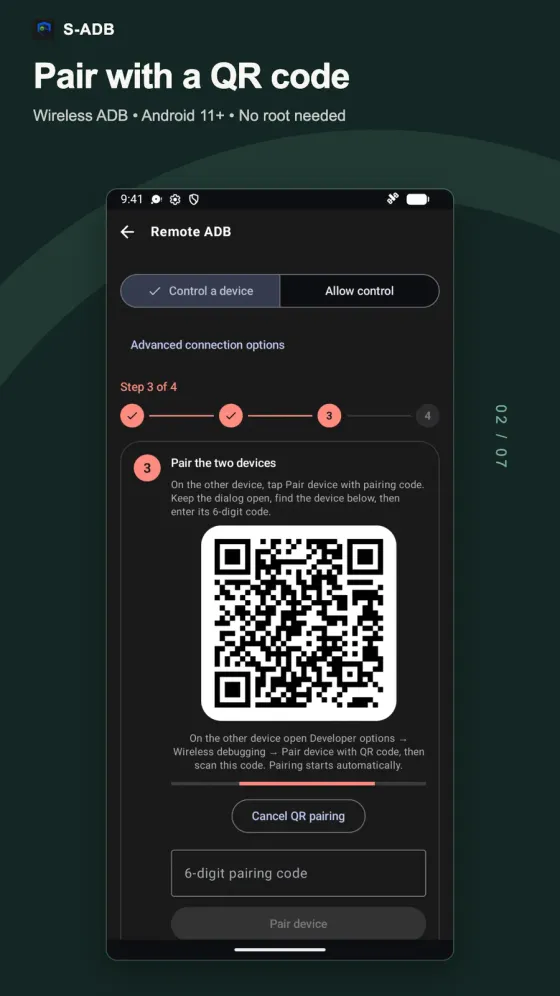

S-ADB
Wireless ADB pairing and Android debug tools Android W Lab × PixelAI Lab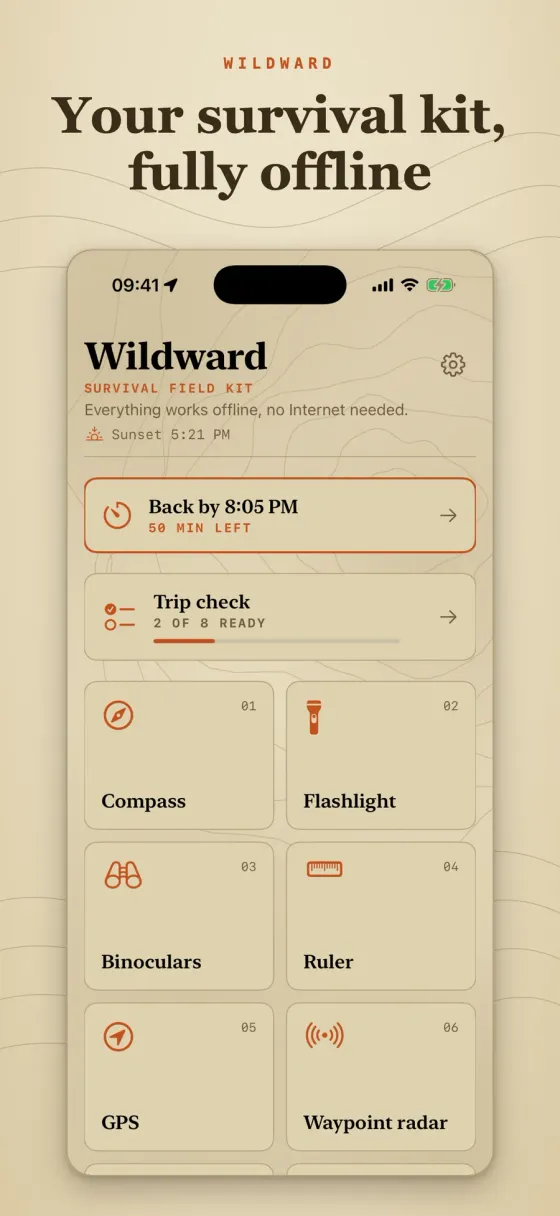

Wildward
Offline survival kit for the outdoors iOS Android Coming soon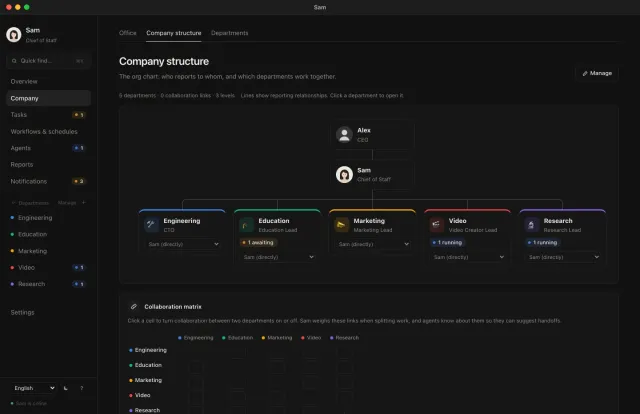

Sam
The chief of staff for a whole company of AI agents macOS Windows Linux