 Koedori
Step by step
-
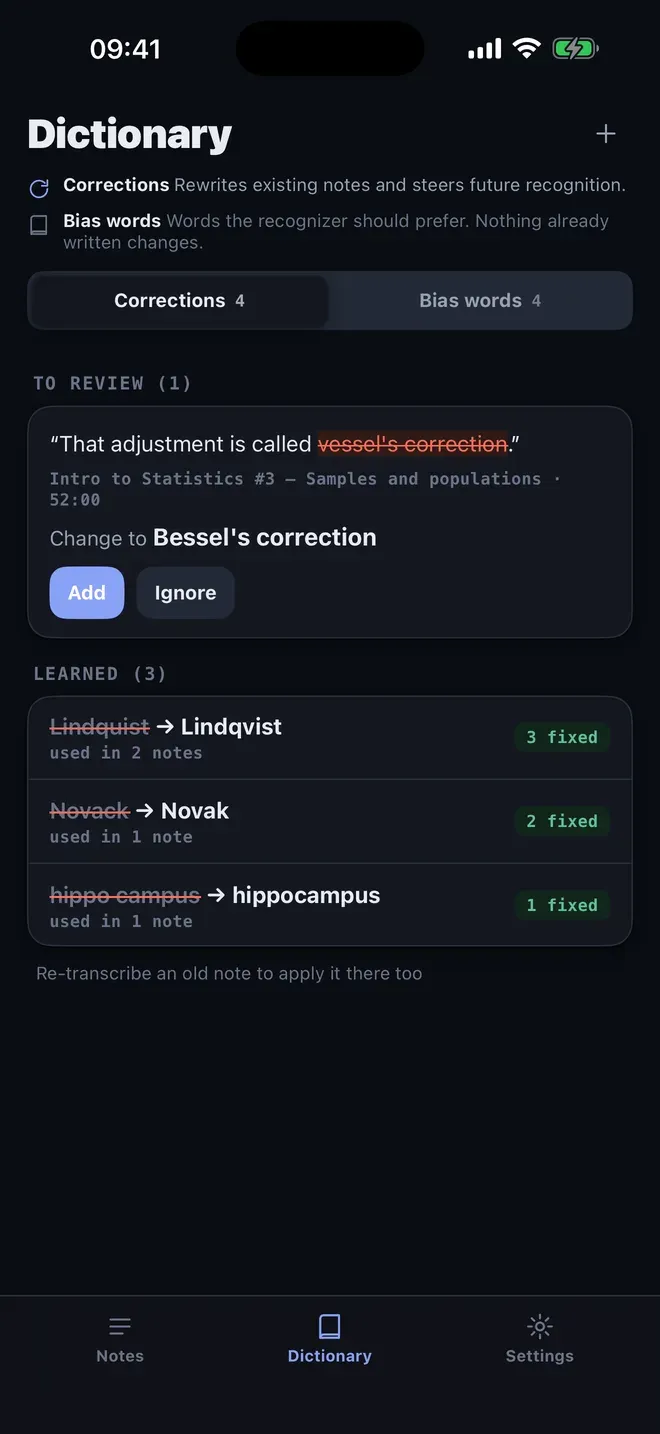
Open the Dictionary tab. Under Corrections, Koedori lists the fixes you have added, with how many notes each appeared in. When it spots a likely mistake, it waits under To review with Add and Ignore buttons.
-
Add the correction. Tap +, type the wrong spelling and the right one, and save. From then on Koedori fixes that word in every new transcript, and your earlier notes are rewritten too.
-
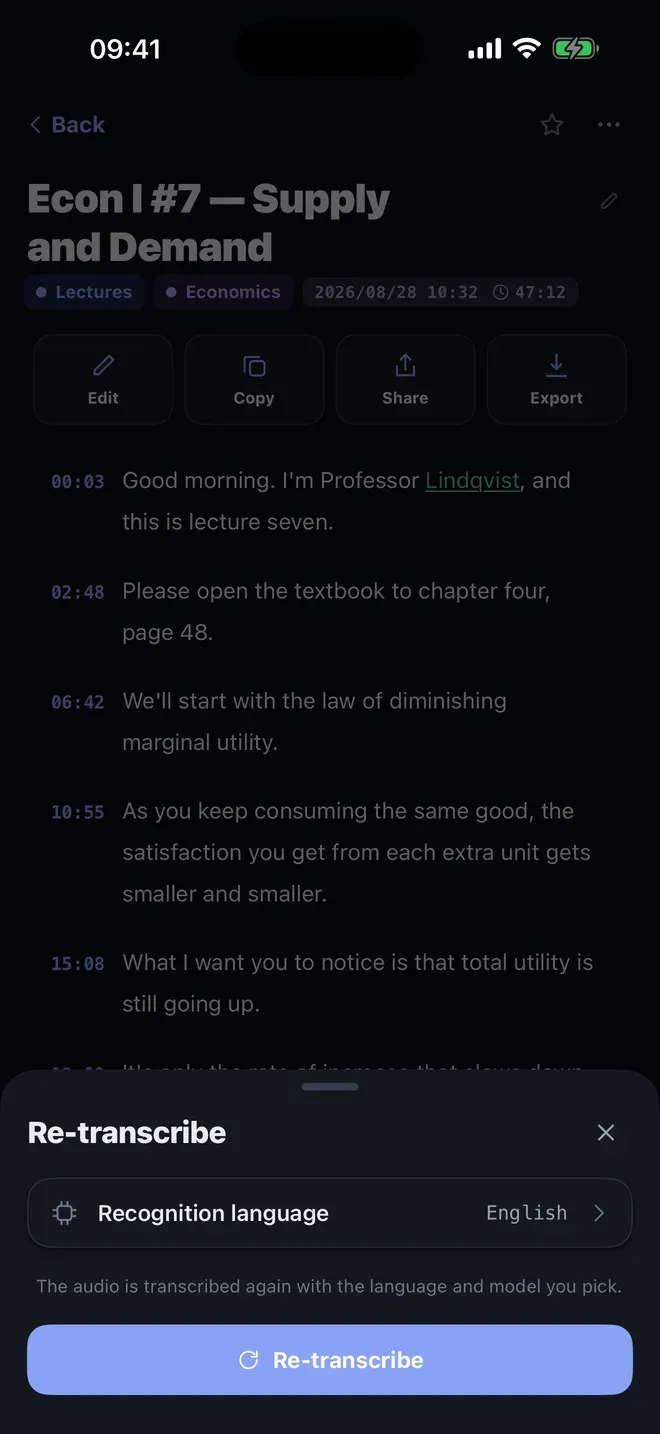
Re-transcribe an old note. Open the note’s menu and tap Re-transcribe, check the Recognition language, then tap the button. The audio is transcribed again with your corrections.
-
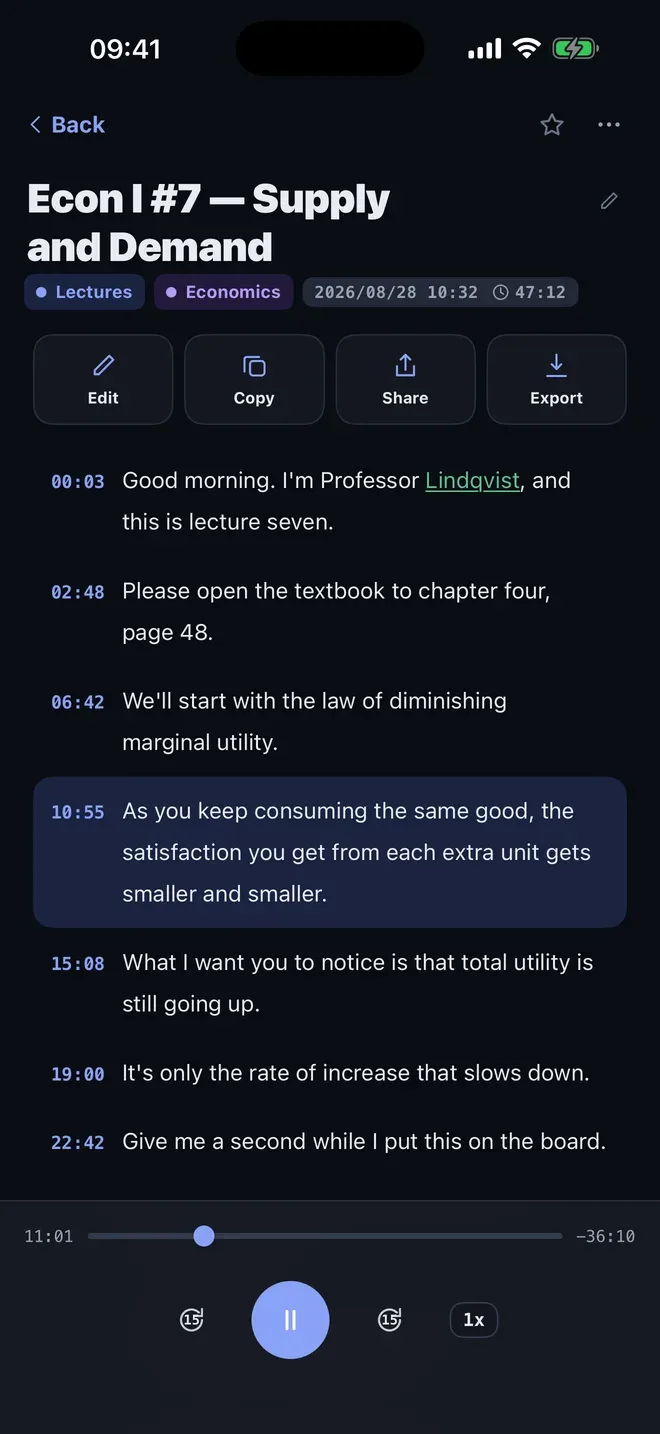
Check the note. Fixed words are marked, so you can see where a correction applied.
Corrections or bias words?
- Corrections rewrite a wrong word after it appears. They also fix existing notes.
- Bias words tell the recognizer which words it should prefer. Nothing already written changes.
For a name that always comes out wrong, a correction is the quickest fix.
Other ways to do it
- Edit by hand in the note. This fixes one word at a time.
- Find and replace in another editor works after you export, and you repeat it for every new recording.
Questions people ask
Why does a transcript get names and jargon wrong?
Speech recognition guesses the most common words that sound alike, so rare names, course terms and jargon often come out wrong. Koedori lets you correct each word once and applies the fix from then on.
Is the Dictionary shared with other apps?
No. The Dictionary lives in Koedori on your iPhone, and the words you add stay there.

Get Koedori
Record lectures, transcribe them offline

On the App Store as “Lecture Recorder: Transcribe”.