 AuCut
Step by step
-
Open Volume and choose the file. On AuCut’s home screen, tap Volume and pick an audio file, or share one to AuCut from Voice Memos or another app.
-
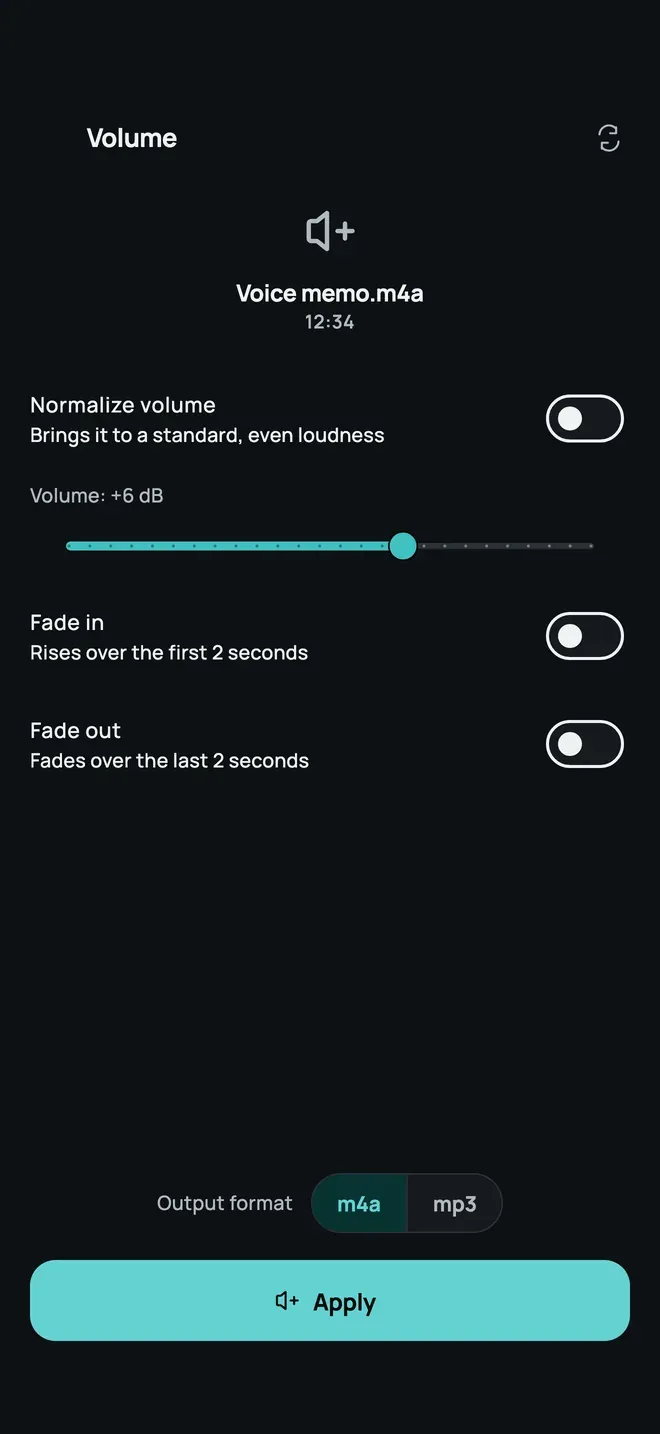
Set the volume. Drag the Volume slider: the label shows the change, such as +6 dB. Or turn on Normalize volume to bring the file to a standard, even loudness.
-
Add a fade if you want one. Turn on Fade in to rise over the first 2 seconds, or Fade out to fade over the last 2 seconds.
-
Pick the format and tap Apply. Choose m4a or mp3 under Output format, then Apply. Preview the result, then share or save it.
Tips
- Normalize first when a recording has both quiet and loud parts. A plain boost lifts both.
- Trim and boost together. The Trim and Convert tools have the same volume and fade options, so you can trim and adjust in one pass.
- Hiss in the background? Boosting also lifts noise. Try noise reduction first.
Other ways to do it
- A desktop editor has precise gain and normalization, but needs a computer.
- Online volume boosters make you upload the file to a server first.
Questions people ask
What does Normalize volume do?
It brings the recording to a standard, even loudness, so quiet parts are lifted and the whole file sounds consistent. Use it when boosting by hand makes loud parts distort.
How much can I boost the volume?
Use the slider to set the change in dB. A big boost can make loud parts distort, and AuCut says so when you push it far. If that happens, use Normalize volume instead.
Can I fade a recording in or out?
Yes. Turn on Fade in to rise over the first 2 seconds, or Fade out to fade over the last 2 seconds. You can do this in the Volume tool, and also while you trim or convert.

Get AuCut
Cut audio and extract it from video


On the App Store as “AuCut: Audio Cutter & Editor”. On Google Play as “adTrim: Offline Audio Tools”.