 AuCut
Step by step
-
Open Noise reduction and choose the recording. On AuCut’s home screen, tap Noise reduction and pick the audio file, or share it to AuCut from Voice Memos.
-
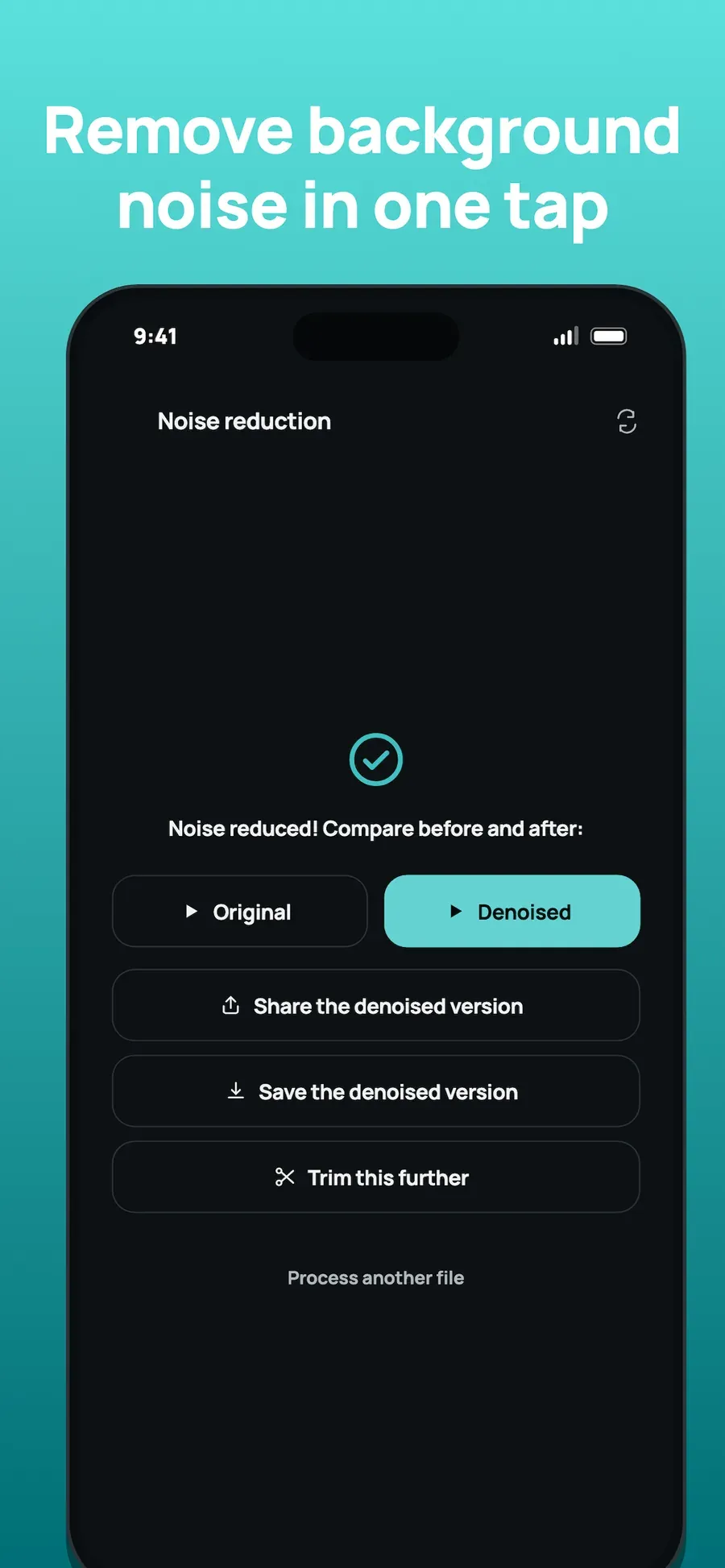
Let AuCut clean it. AuCut reduces the background noise on your phone and tells you when it is done: Noise reduced! Compare before and after.
-
Compare, then share or save. Tap Original and Denoised to hear the difference. Then share or save the denoised version, or tap Trim this further to cut it.
Tips
- Start with the cleanest recording you can. Noise reduction helps with hum and hiss, and it works best on a voice that is already clear.
- Trim after cleaning. Cut the ends on the waveform for a tidy file.
Other ways to do it
- Desktop editors have noise tools, but they have a learning curve.
- Online noise removers need the recording uploaded.
Questions people ask
Does noise reduction upload my recording?
No. AuCut reduces the noise on your phone itself, so the recording is not uploaded and no account is needed.
How do I know it improved the recording?
AuCut shows Original and Denoised buttons so you can play both and compare them before you decide.

Get AuCut
Cut audio and extract it from video


On the App Store as “AuCut: Audio Cutter & Editor”. On Google Play as “adTrim: Offline Audio Tools”.