 AuCut
Step by step
-
Share the voice memo to AuCut. In Voice Memos, open the recording, tap the share button and choose AuCut. It opens on your iPhone, ready to trim.
-
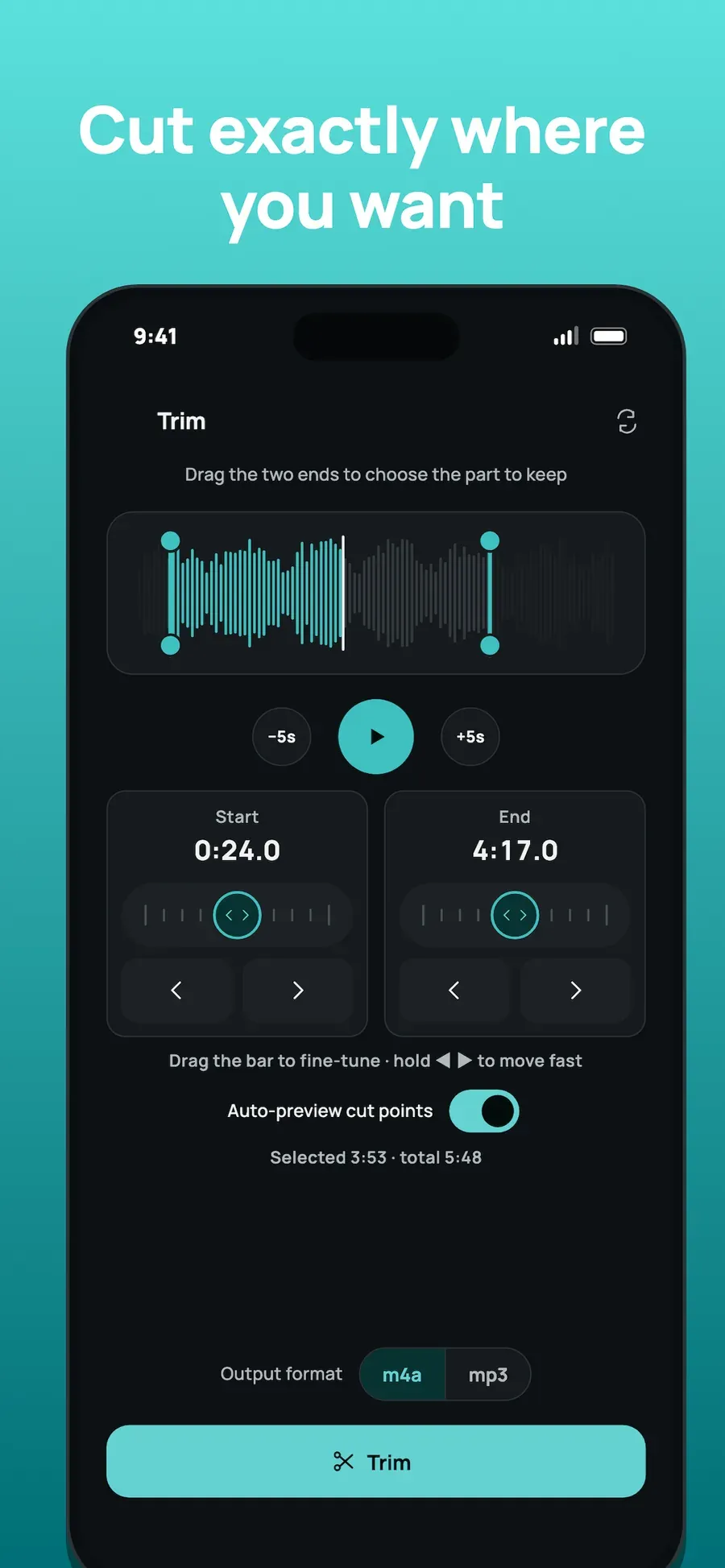
Drag the ends to the part you want. On the waveform, drag the two ends, then fine-tune each cut to a tenth of a second while AuCut plays the audio around it.
-
Boost the volume or add a fade. If the memo starts too quietly or ends abruptly, boost or normalize the volume, or add a fade in or out.
-
Save and share. Choose M4A, MP3 or WAV, then save the file or share it to Messages, Mail or another app.
Related
- Remove a hum or hiss first with noise reduction.
- Merge several memos into one track.
Other ways to do it
- Voice Memos’ own trim works for its recordings. AuCut also opens audio from other places and saves MP3 or WAV.
- Online tools make you upload the recording, which is a private conversation in many cases.
Questions people ask
Does AuCut change the original voice memo?
No. AuCut makes a new file with the part you keep, and your original stays in Voice Memos.
Can I clean up a voice memo in one step?
Yes. AuCut has a one-step clean-up for voice memos with noise reduction, and it can cut out silent gaps. Then trim the ends on the waveform if you want to be exact.

Get AuCut
Cut audio and extract it from video


On the App Store as “AuCut: Audio Cutter & Editor”. On Google Play as “adTrim: Offline Audio Tools”.