 AuCut
Step by step
-
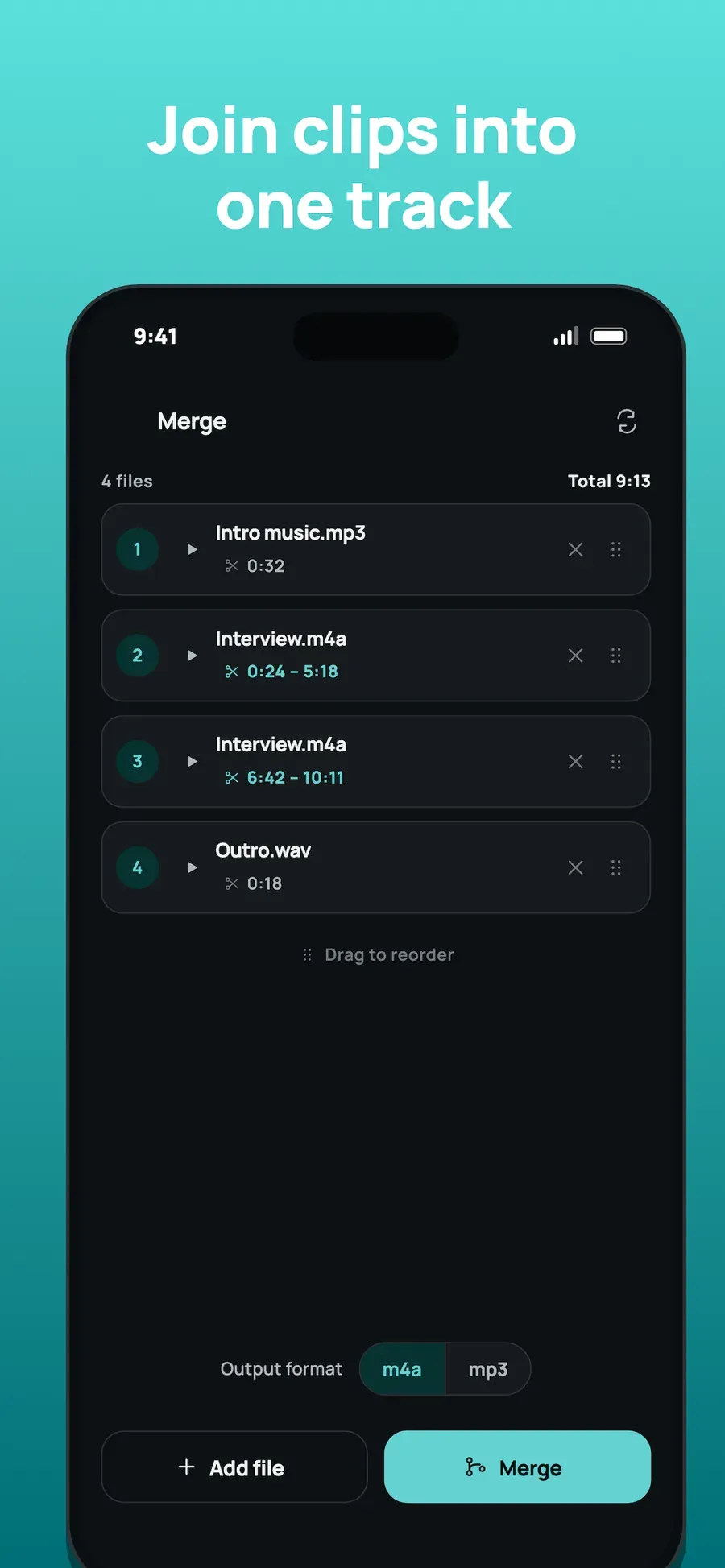
Open Merge and add your clips. On AuCut’s home screen, tap Merge, then Add file for each clip. The list shows how many files you have and the total length.
-
Order and trim the clips. Drag a clip by its handle to move it. Under a clip’s name, AuCut shows the part of it that will be used, for example 0:24 – 5:18, so you can trim each clip before it joins the track.
-
Choose the format and tap Merge. Pick m4a or mp3 under Output format and tap Merge. AuCut joins the clips on your phone. Preview the track, then share or save it.
Ideas
- Interview with intro and outro: add the intro music, the interview and the outro, and join them in one go.
- Voice memos in one file: merge several memos into one track to share.
- Need the opposite? AuCut also splits a file into equal parts, or by length.
Other ways to do it
- Desktop audio editors merge files well, but you need a computer.
- Online mergers need every clip uploaded to a server first.
Questions people ask
Can I put the clips in a different order?
Yes. Drag the clips in the list to reorder them before you merge. The number at the left of each clip shows its place in the final track.
Can I merge different formats?
Yes. Add the files you have, such as MP3, M4A and WAV, then pick the output format, M4A or MP3, for the joined track.

Get AuCut
Cut audio and extract it from video


On the App Store as “AuCut: Audio Cutter & Editor”. On Google Play as “adTrim: Offline Audio Tools”.