 Red Sheet
Step by step
-
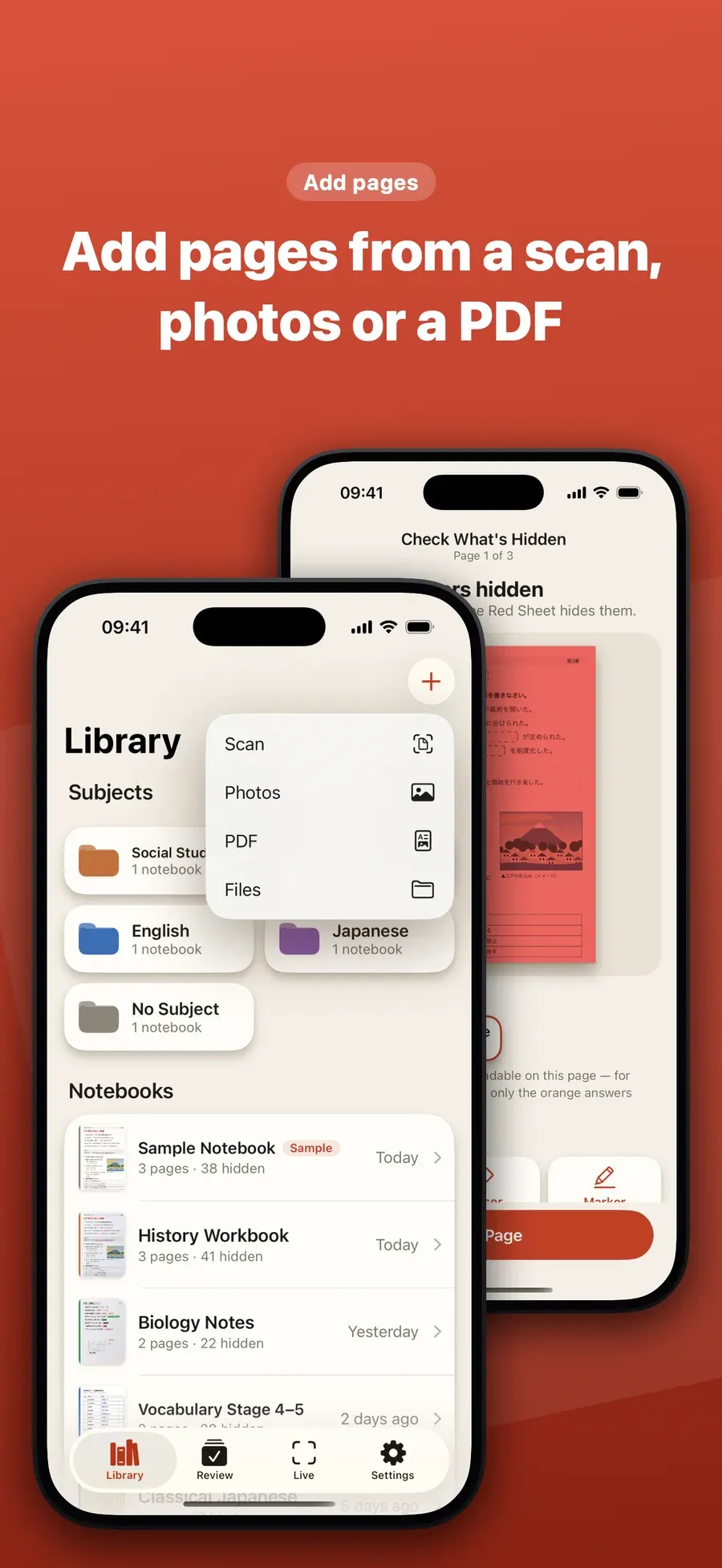
Import the PDF. Tap + and choose PDF, then pick the file from Files. Each page is added as a page in a notebook.
-
Study it. Red Sheet hides the colored answers, and in Edit you can box any other words. Reveal, then mark ○ or ×.
-
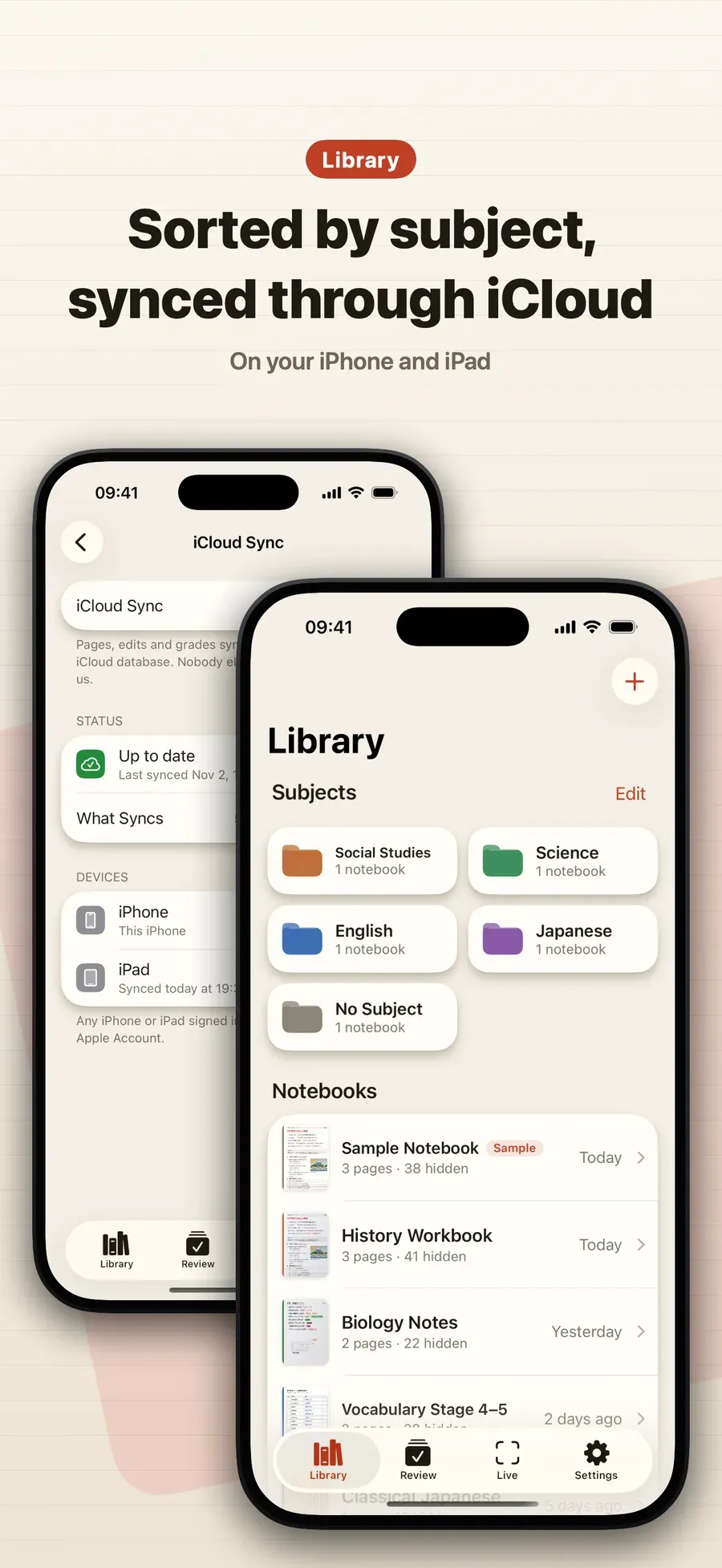
Turn on iCloud Sync in Settings to use the same pages on iPhone and iPad. Your pages, edits and grades sync through your own iCloud.
-
Use Apple Pencil on iPad. Study on the big screen, and draw boxes and markers with Apple Pencil.
Good to know
- Back up for free. Export every notebook as one file to Files or anywhere else, and restore from it on a new iPhone.
- Offline. Adding pages, hiding, grading and review run on your device. Only iCloud sync uses the internet.
Other ways to do it
- PDF annotators can highlight, but they don’t hide the answers and quiz you.
- Printing the PDF and using a plastic sheet works, with paper and a pen.
Questions people ask
Can I use notes from another app?
Yes. Export them as a PDF, then import the PDF into Red Sheet from Files. Each page becomes a page you can hide and quiz on.
Does syncing upload my pages to W Lab?
No. W Lab never sees your pages and has no server to receive them. Sync uses your own iCloud, and it is the only part of the app that uses the internet.

Get Red Sheet
Turn your notes into a quiz, no typing

On the App Store as “Red Sheet - Photo & PDF Study”.