 Red Sheet
Step by step
-
Add the page. Tap + and add the textbook or worksheet page from the scanner, your photos or a PDF.
-
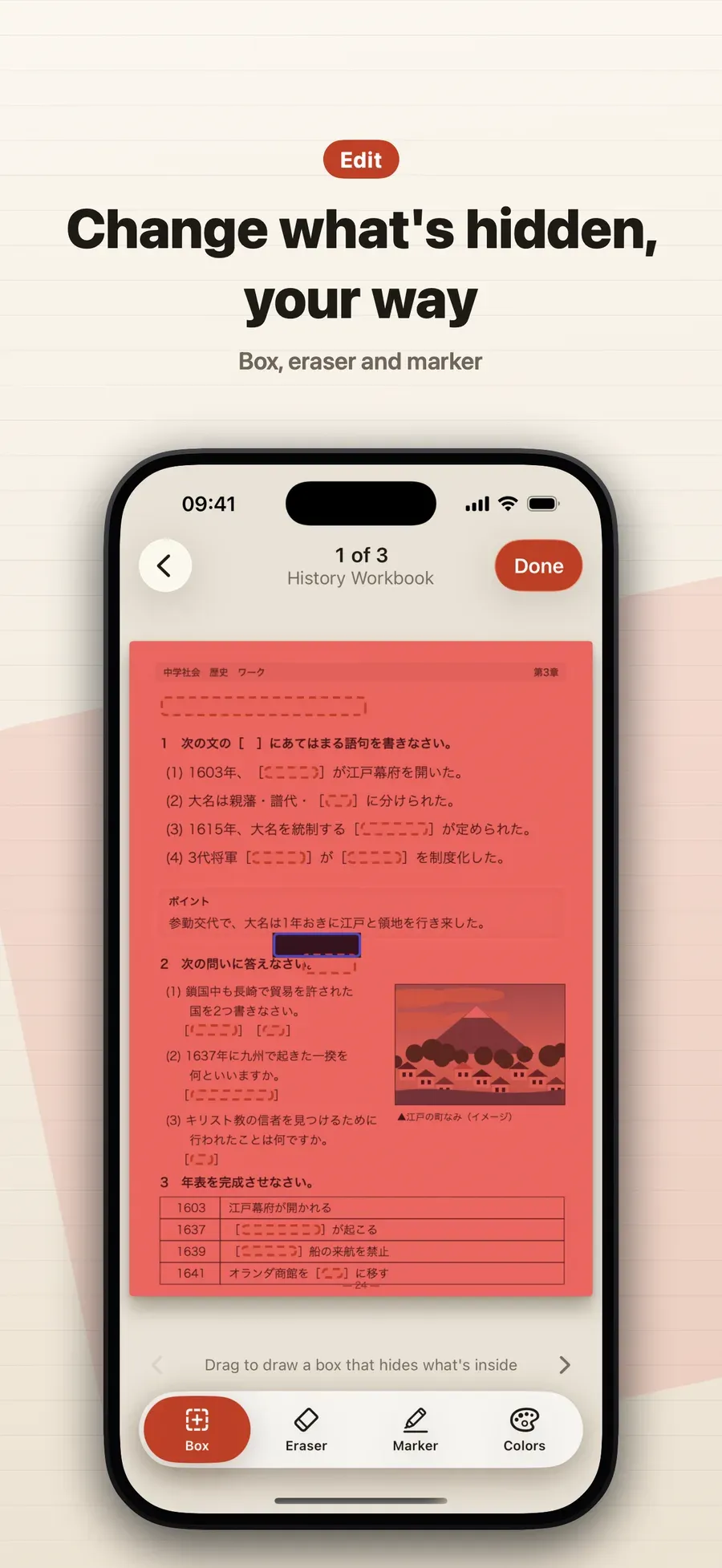
Open Edit. Tap Edit at the bottom. You get Box, Eraser, Marker and Colors.
-
Hide the words. With Box, draw a box around each word or phrase you want to learn. With Marker, draw over the words. Use the Eraser to show anything you hid by mistake.
-
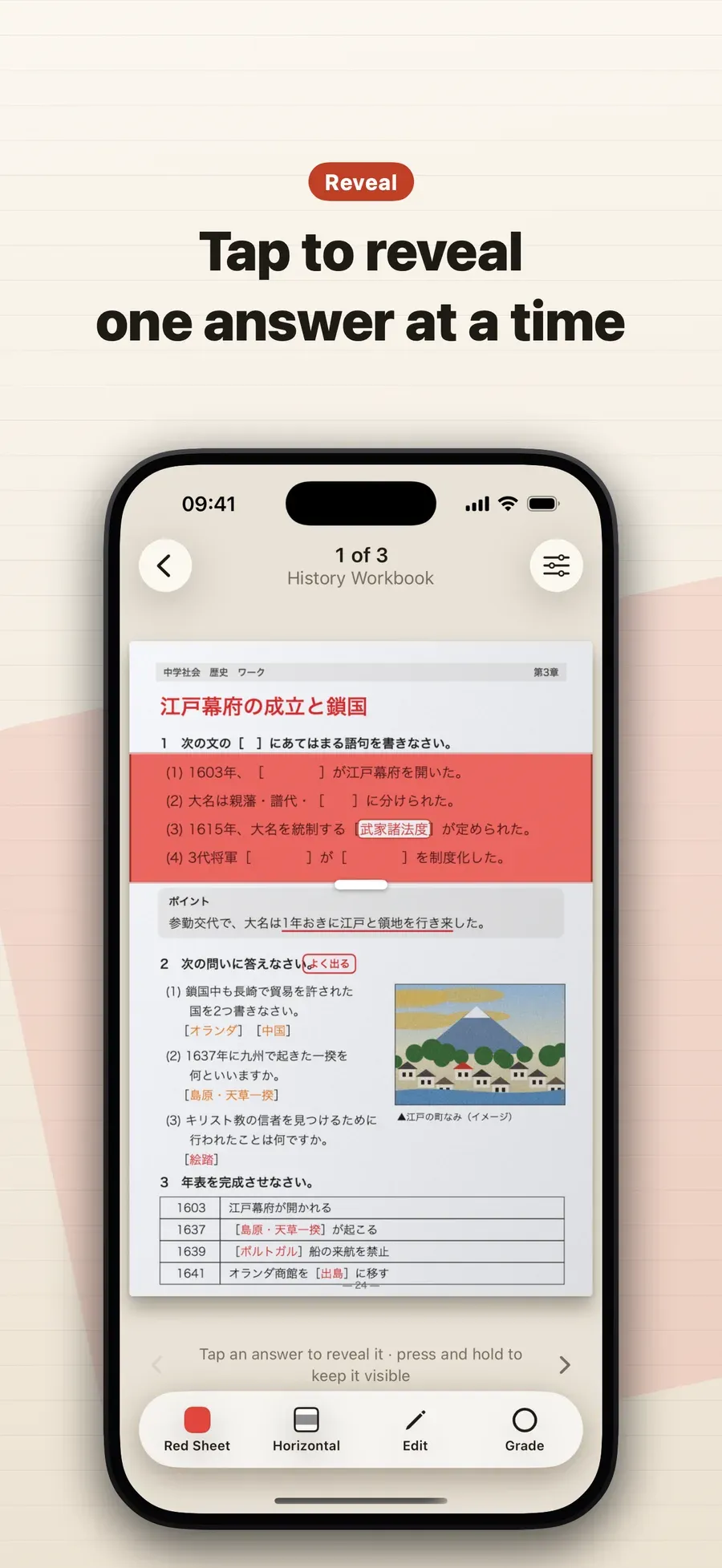
Tap to reveal. Leave Edit, put a sheet over the page and tap each hidden word to check yourself.
Tips
- Hide terms, not whole sentences, for sharper recall.
- Combine with pens. Colored pen hides on its own, and Edit adds the rest.
- Mark ○ or × after each reveal so the ones you missed come back tomorrow. See spaced repetition for your own notes.
Other ways to do it
- Correction tape or sticky notes hide words on paper, one at a time.
- Making cloze cards by hand in a flashcard app means retyping the text.
Questions people ask
Can I hide words that are printed in black?
Yes. Red Sheet hides colored pen automatically, and for black print you box the words yourself in Edit or draw over them with the marker.
What if I hide the wrong thing?
Use the eraser in Edit to show what was hidden by mistake. You can change what’s hidden whenever you like.

Get Red Sheet
Turn your notes into a quiz, no typing

On the App Store as “Red Sheet - Photo & PDF Study”.