 AuCut
Step by step
-
Open Separate video & audio and choose the video. On AuCut’s home screen, tap Separate video & audio and pick a video from your photo library or Files. A video shared from another app opens too.
-
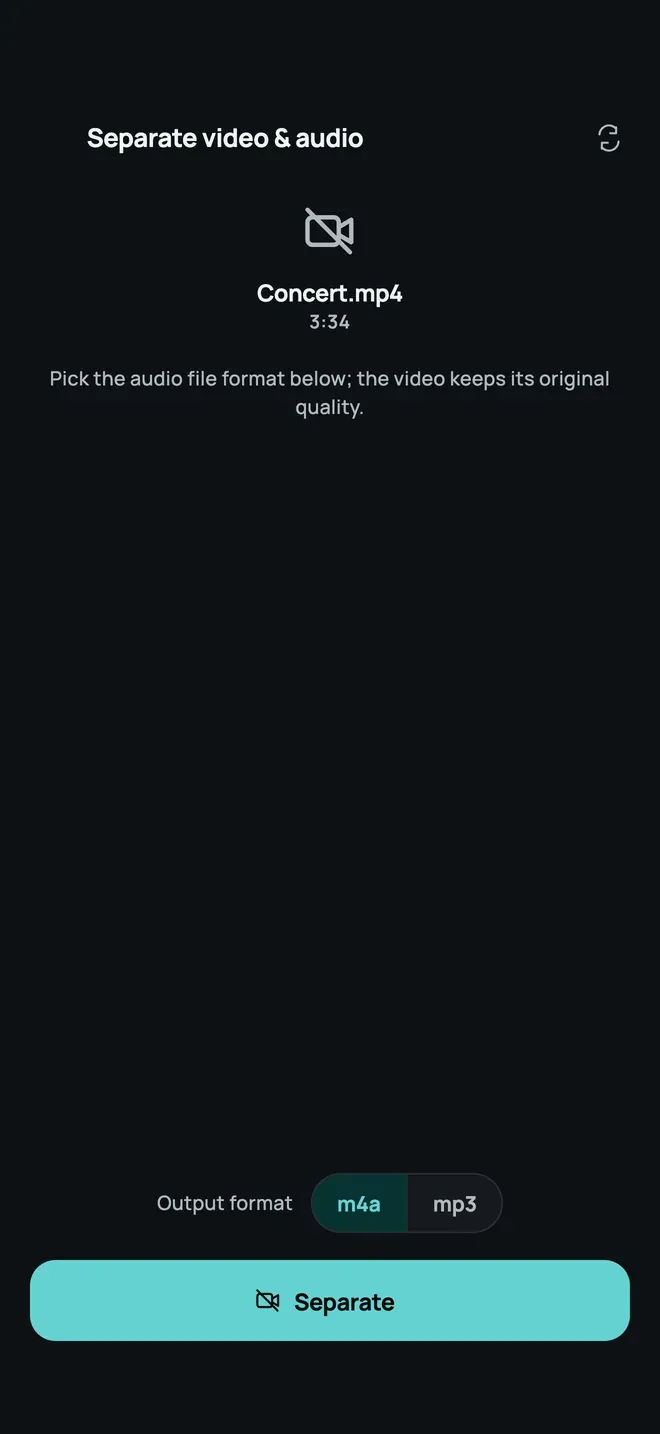
Pick the audio format. AuCut says the video keeps its original quality. Under Output format, choose m4a or mp3 for the audio file.
-
Tap Separate. AuCut makes two files on your phone: Silent video and Audio file. Share or save each one.
When it helps
- Replace the sound: keep the picture and add your own music or voice-over in an editor.
- Keep just the audio: a talk, a song or an interview from a video, as its own file.
- Post a muted clip without re-recording.
If you only want the sound, extract audio is quicker, and you can trim it after.
Other ways to do it
- A video editor can detach audio, but you need the editor and a computer or a long phone session.
- Online tools need the whole video uploaded.
Questions people ask
Does the video lose quality?
No. The silent video keeps its original picture quality. Only the sound is taken out into the separate audio file.
What if my video has no sound?
AuCut still gives you the silent copy, since the video had no audio to separate.

Get AuCut
Cut audio and extract it from video


On the App Store as “AuCut: Audio Cutter & Editor”. On Google Play as “adTrim: Offline Audio Tools”.