 AuCut
Step by step
-
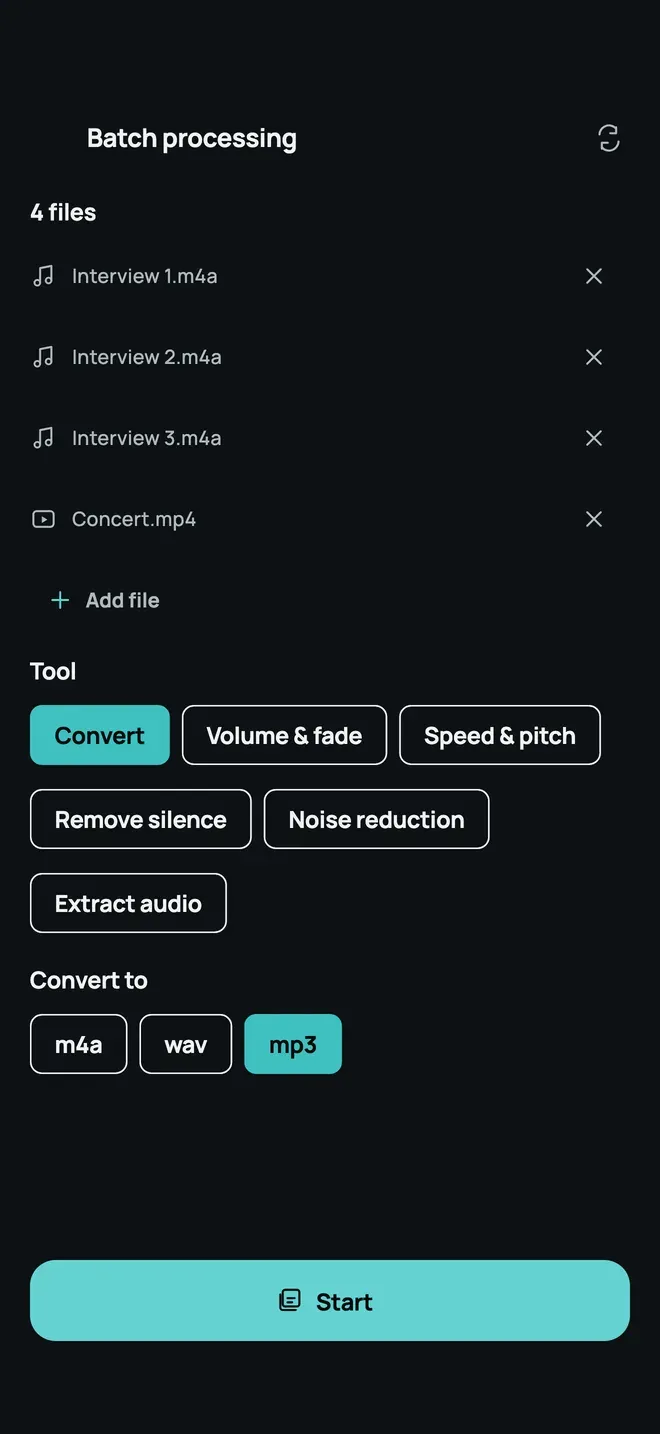
Open Batch processing and choose the files. On AuCut’s home screen, tap Batch processing and choose up to 20 audio or video files. Add file adds more, and the × removes one.
-
Pick one tool for all of them. Under Tool, choose Convert, Volume & fade, Speed & pitch, Remove silence, Noise reduction or Extract audio. Extract audio works on videos only, and audio files are skipped.
-
Set the options and tap Start. For Convert, pick m4a, wav or mp3 under Convert to. Tap Start and keep the app open while AuCut works through the files. When it finishes, you see how many were done, such as “4 of 4 files done”.
Tips
- Same tool for all. To use different tools, run another batch with Start another batch.
- Convert a whole folder of memos from M4A to MP3 in one go.
- Even out many recordings by choosing Volume & fade with normalize.
Other ways to do it
- Desktop converters handle big batches, but you have to move the files to a computer.
- Online converters upload each file.
Questions people ask
How many files can I process at once?
Up to 20. If you choose more, AuCut adds the first 20 and tells you so.
Do I have to keep the app open?
Yes. Keep AuCut open until the batch finishes, and you’ll see its progress, such as Processing 3/4.

Get AuCut
Cut audio and extract it from video


On the App Store as “AuCut: Audio Cutter & Editor”. On Google Play as “adTrim: Offline Audio Tools”.