 AuCut
Step by step
-
Open Convert and choose the file. On AuCut’s home screen, tap Convert and pick your M4A, MP3 or WAV file from your phone. Audio shared from another app opens in AuCut too.
-
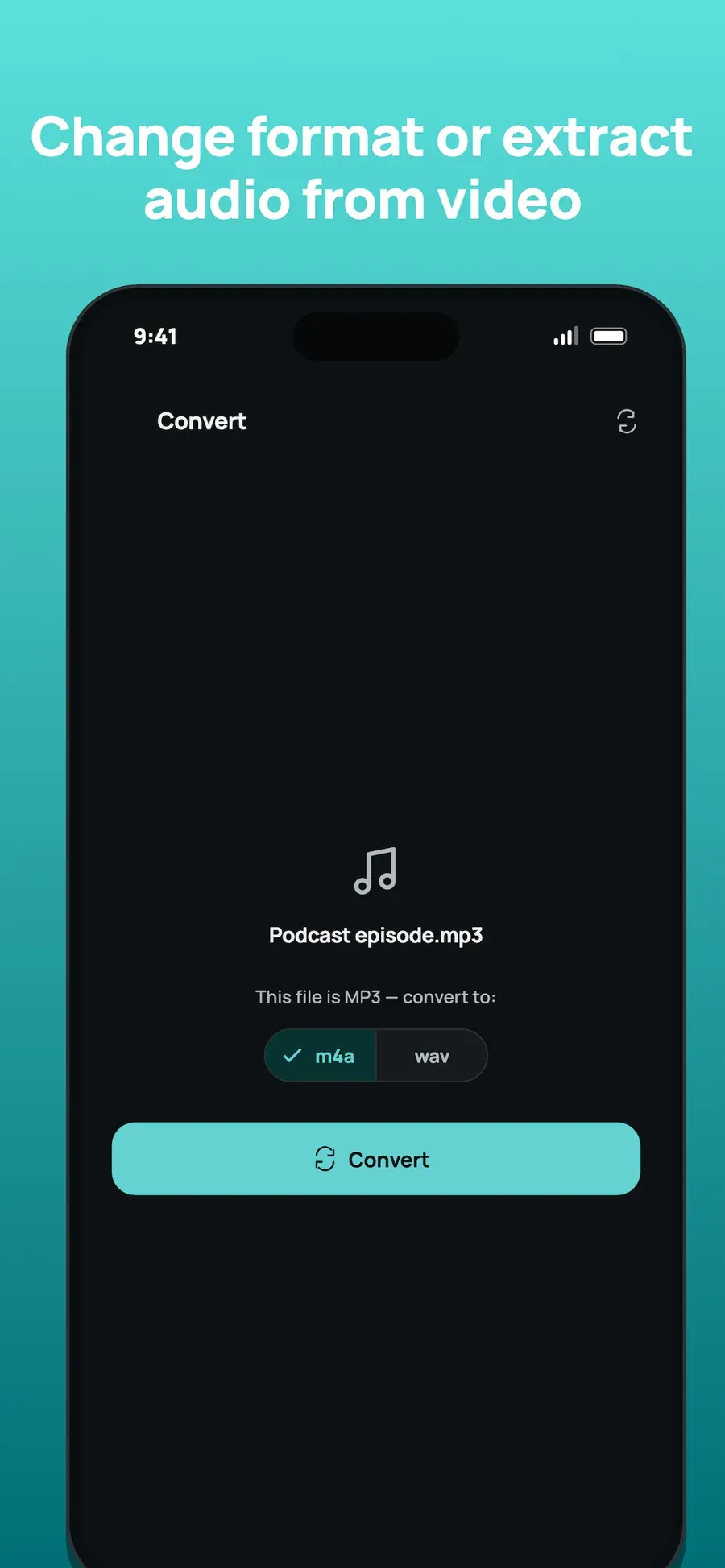
Pick the format to convert to. AuCut names the file’s current format and offers the others, such as m4a and wav for an MP3. Tap the one you want. For an M4A file, choose mp3.
-
Tap Convert. AuCut converts the audio on your phone. Preview it, share it to another app, or save it where you want.
Which format?
- MP3 plays almost everywhere: car stereos, older music players, Windows PCs and most websites that take audio.
- M4A keeps good quality in a small file and is what Voice Memos records in.
- WAV is uncompressed and large, and some editing tools prefer it.
You can boost, normalize or fade the volume in the same step. See the trimming guide to cut the file first.
Other ways to do it
- A computer app such as a media player or editor can convert files, but you have to move them over first.
- Online converters need the whole file uploaded to a server, which is slow on mobile data.
Questions people ask
Which formats can I convert between?
MP3, M4A and WAV, in any direction. AuCut shows the formats the file can be converted to, and you tap the one you want.
Do I need to sign up to convert a file?
No. AuCut has no accounts, so there is nothing to sign up for, and the file is converted on your phone rather than uploaded.
Can I convert a video to MP3?
Yes. Use the Extract audio tool for that: it takes the sound from an MP4, MOV or other video and saves it as MP3, M4A or WAV. See [the guide to extracting audio from a video](/guides/extract-audio-from-video-iphone/).

Get AuCut
Cut audio and extract it from video


On the App Store as “AuCut: Audio Cutter & Editor”. On Google Play as “adTrim: Offline Audio Tools”.