 Koedori
Step by step
-
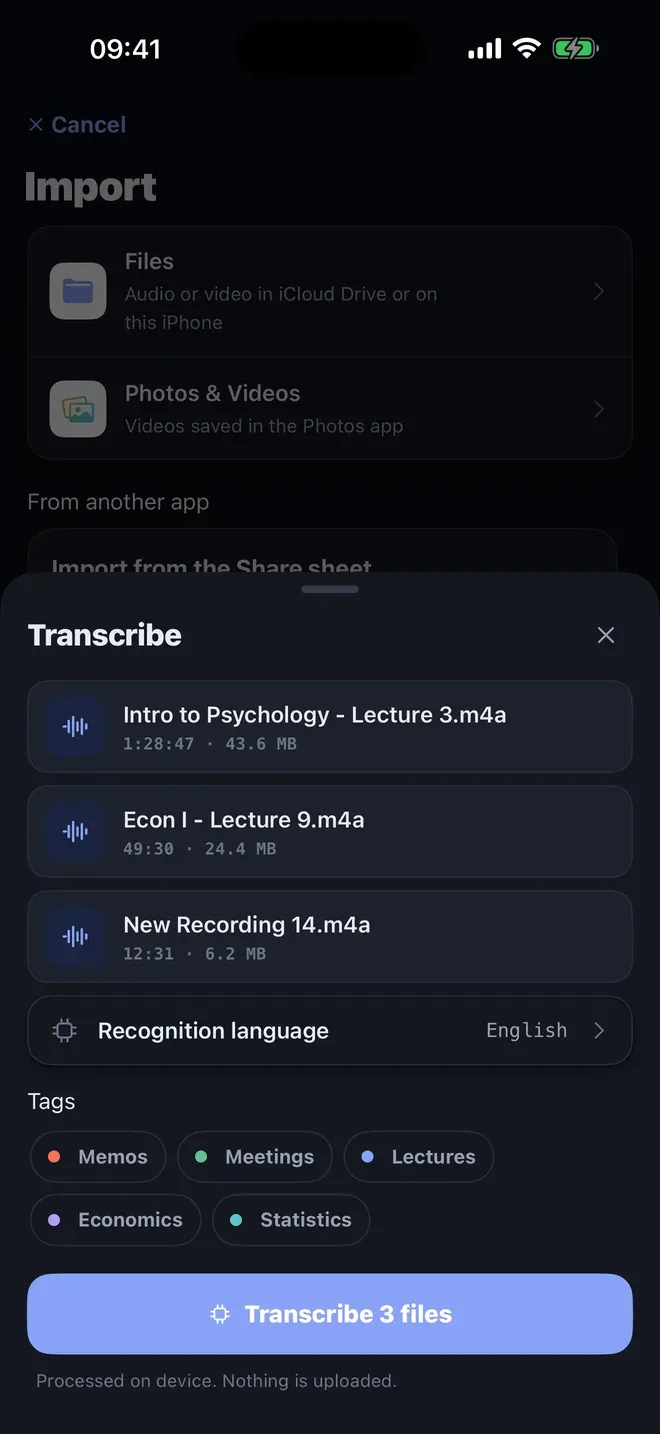
Import the audio or video. Open Koedori’s Import screen and choose Files for audio or video, or Photos & Videos for a video from your camera roll. You can also share a recording to Koedori from another app. Pick the recognition language and tap Transcribe.
-
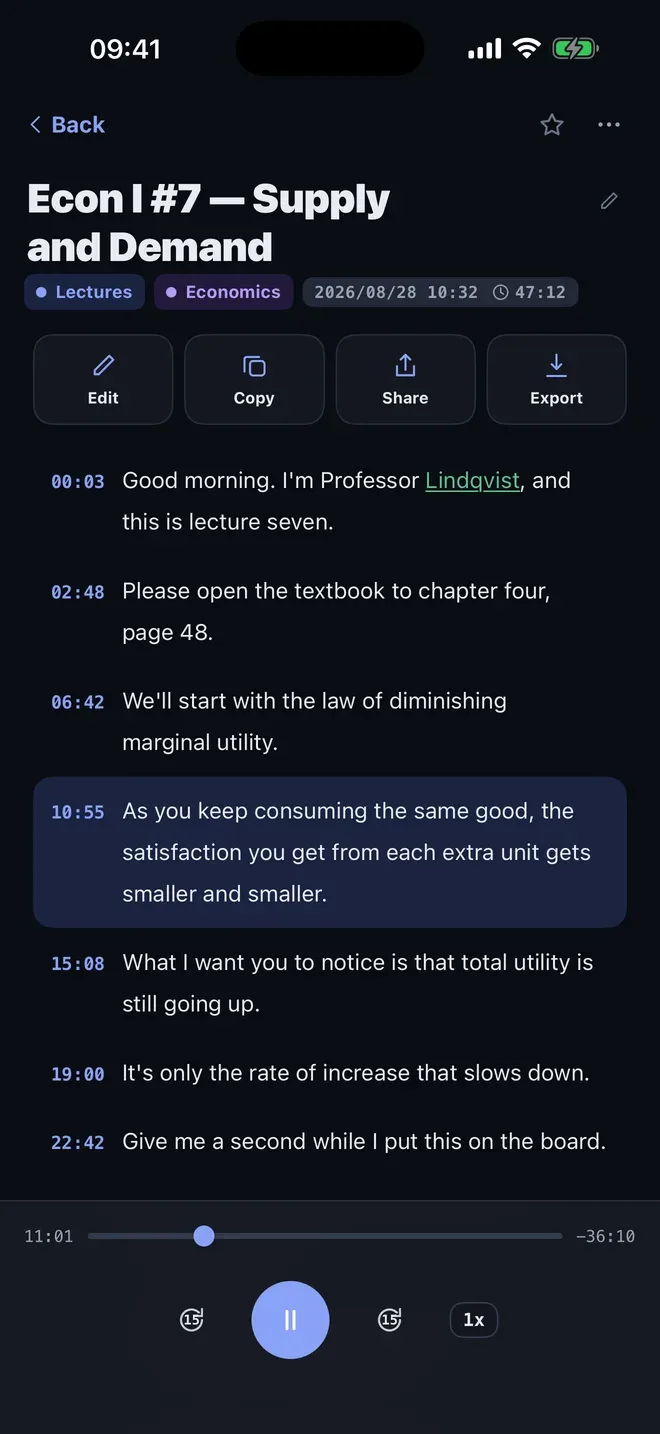
Check the transcript. Koedori transcribes on your iPhone and opens the note, with a time on every line. Tap a line to hear it, and fix any wrong word before you export.
-
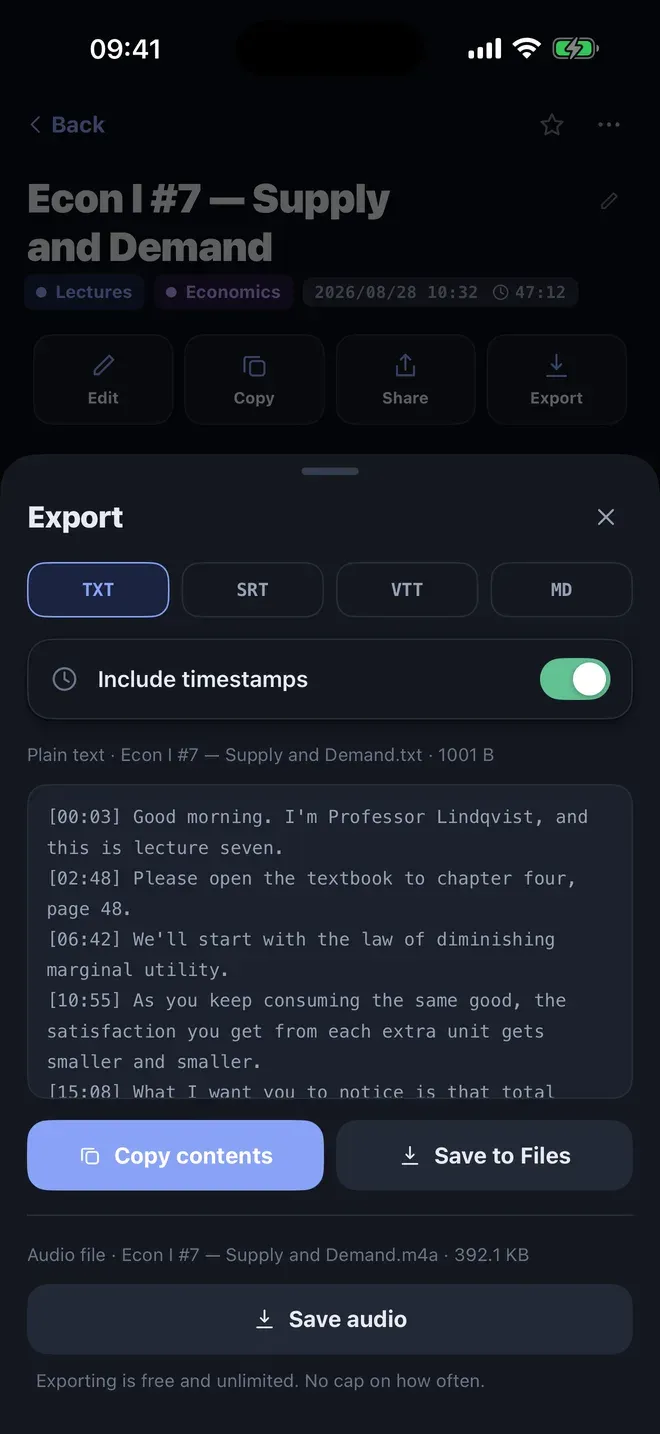
Export as SRT or WebVTT. Tap Export, then choose SRT or VTT. Turn Include timestamps on for plain text or Markdown. Tap Save to Files to keep the file, or Copy contents to paste it.
Tips for better subtitles
- Clean audio gives cleaner text. A clear voice and little background noise help most.
- Fix names first. Add names and terms to the Dictionary, then re-transcribe, and the subtitles come out right.
- Check long lines. A long sentence becomes one long subtitle, so shorten it in your editor if it won’t fit the screen.
Other ways to do it
- Video editors can generate captions themselves, often by uploading the audio to a cloud service.
- Online subtitle generators need the whole file uploaded. Koedori transcribes offline on your iPhone.
Questions people ask
What is the difference between SRT and WebVTT?
Both are plain-text subtitle files with a time and a line for every subtitle. SRT is the older format that most video editors and players read. WebVTT is the one web video players use. Koedori exports both from the same transcript.
Can I put the subtitles on the video inside Koedori?
No. Koedori makes the subtitle file. You then load that file in your video editor or player, which shows the lines at the right moments.

Get Koedori
Record lectures, transcribe them offline

On the App Store as “Lecture Recorder: Transcribe”.