 Koedori
Step by step
-
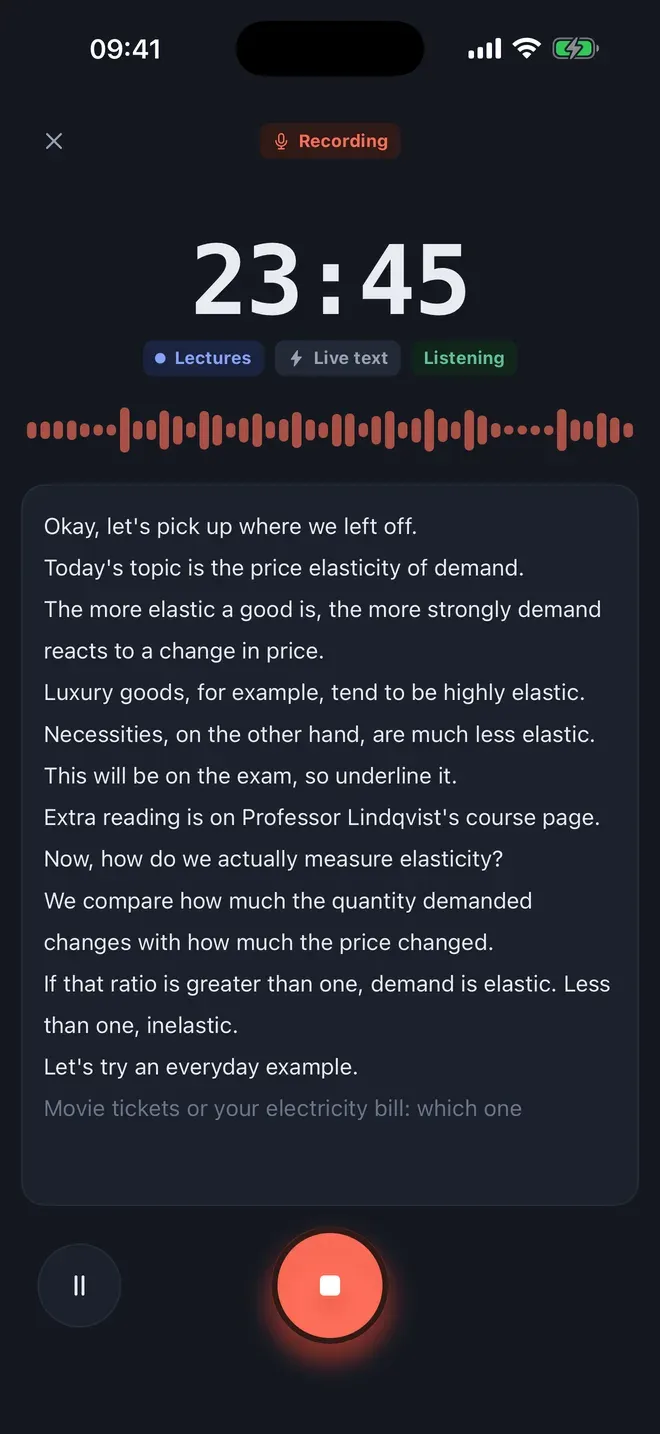
Start recording. Tap the round record button on the Notes tab. Choose Live text if you want to watch the words appear while the lecturer speaks, or leave it off and Koedori transcribes the moment you stop. You can pause, and the screen can lock.
-
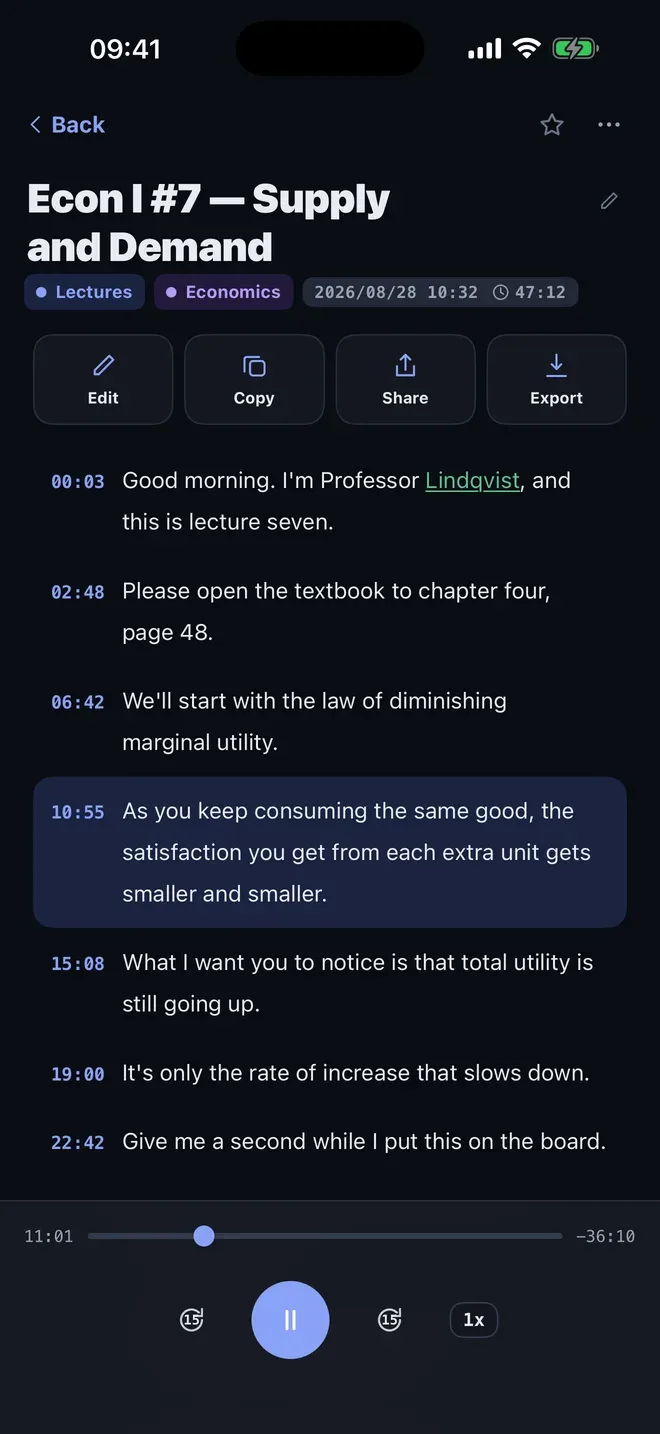
Stop and open the note. When the lecture ends, tap stop. The note gets a title written from what was said, and the transcript is ready on your iPhone. Every line keeps its time. Tap a line and the audio plays from there, so you can hear a moment again while you read along.
-
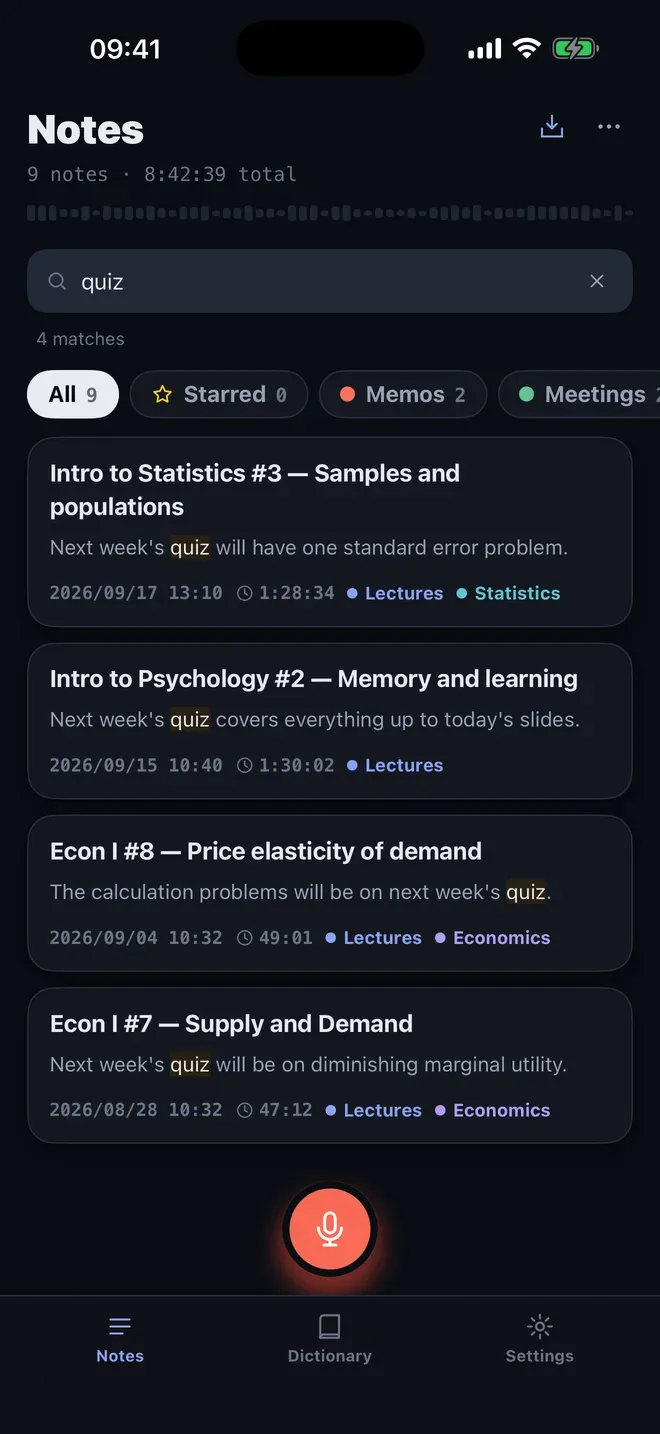
Find what you need later. On the Notes tab, search for a word from the lecture. Koedori looks inside every transcript, not only the titles, and shows the line with your word highlighted.
Before the lecture
- Download your language once. In Settings → Recognition language, download the speech model for your language. After that, recording and transcription need no connection. Koedori transcribes about ten languages, including English, Japanese, Chinese, Korean, Spanish and French.
- Put the iPhone near the speaker. A phone close to the front of the room hears the lecturer better than one in a bag.
- Add tags. Tag a note Lectures, Economics or Exam prep and filter the list with one tap.
After the lecture
Tap Export on a note to share the transcript as plain text or Markdown, with or without timestamps, or as SRT or WebVTT subtitles. See how to fix wrong names and terms so the next lecture comes out right.
Other ways to do it
- The Voice Memos app records a lecture for free, but it gives you audio to listen to, not text to search.
- Online transcription services produce text, but they upload your recording to someone else’s server, which needs a connection and your trust.
- Typing notes by hand works for short talks, and it is hard to keep up with a fast lecturer.
Questions people ask
Can I record a lecture on iPhone without Wi-Fi?
Yes. Koedori records and transcribes on your iPhone, so it needs no connection once your language’s speech model is downloaded in Settings. It works in Airplane Mode, in a lecture hall with no signal, and your audio never leaves the phone.
Does the recording stop when my iPhone locks?
No. Koedori keeps recording with the screen locked. A recording that runs longer than three hours is split into parts automatically, so a long lecture is not lost.
Do I need to ask the professor before recording?
That depends on your school and country. Many ask you to get permission first, so check the course rules before you record. Koedori keeps the audio on your iPhone, which keeps the recording in your hands.

Get Koedori
Record lectures, transcribe them offline

On the App Store as “Lecture Recorder: Transcribe”.